01 / PREPARE
Before you start
- Choose a short, complete attempt rather than a whole unreviewed session.
- Decide whether the question needs motion, sound or just one scene.
- Check who appears in the clip and use footage you may share.
- For cloud or coach sharing, check sign-in, the recipient connection and current usage availability.
02 / FEATURES
Choose what the recipient needs to receive
A shared scene, exported file and TOKTI link serve different purposes. Start with what the recipient needs to see, then choose the format and destination that support that conversation.
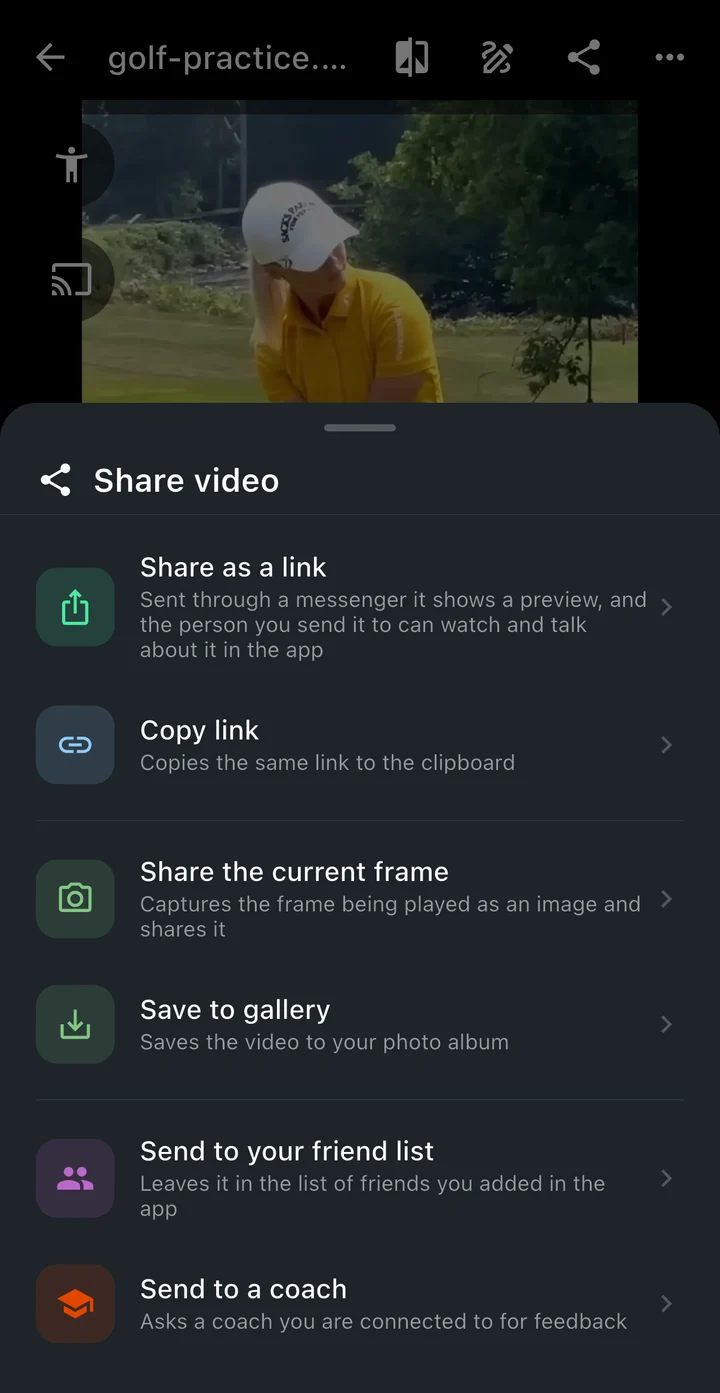
- Share the current frame
- Capture the scene currently shown in playback when you want to point to a position or visible reference. Move to the intended frame first and check any marks. A still cannot communicate the order of movement, so include a clip when the question depends on timing.
- Share or copy a video link
- Use a TOKTI link when you want the recipient to open the shared video through the app’s viewing flow. Review the selected clip, sharing availability and any access or validity information before sending. Copying a link and sending it are separate actions.
- Save or export a video file
- Use a finished video file when the recipient needs an independent copy. Review the output with sound and confirm that the complete relevant movement remains in the clip. Keep the source video separately when further editing may be useful.
- Friend, coach and shared viewing
- Use the corresponding destination for a connected friend or coach. Where shared viewing is available, synchronized playback and chat help participants discuss the same scene. Online workflows depend on the relevant access, connection and usage shown in the app.
03 / WORKFLOW
Step by step
Find the moment
Open the clip, pause at the relevant point and keep the time or interval you want to discuss. Include enough lead-in to explain how the movement starts.
Add a clear explanation
Use a small number of marks or a voice explanation if they help. Ask one specific question about the visible movement instead of asking for a review of everything.
Choose the sharing format
Use current-scene sharing for a still frame, export a video for an independent file, or choose a share link when you want the recipient to open the clip through TOKTI.
Send through the appropriate route
Use the app’s link, friend or coach options as appropriate. Check the recipient and the app’s sharing information before sending.
Review the same scene together
When shared viewing is available, use synchronized playback and chat to discuss the same moment. Keep the feedback connected to a clip you can revisit at the next session.
04 / SETTINGS & EXAMPLES
Choose your workflow
| Ask about a visible position | Current-frame image Mark the point and include a concise question. |
|---|---|
| Ask about timing or movement order | Short video clip Include the lead-in and the ending. |
| Discuss a scene together | Available shared-viewing workflow Confirm both participants can open the material. |
05 / OBSERVE
What to look for
| Question | A question about one visible phase is easier to answer than “What is wrong with my technique?” |
|---|---|
| Format | A still image does not show timing. Choose a clip when the sequence matters. |
| Access | Check that the recipient can open the chosen format, especially when a link or online session has access or validity requirements. |
06 / NEXT PRACTICE
Use a simple video-review message
Describe the movement, identify the moment and state what you were trying to do. For example: “This is my second serve attempt from today. Could we look at the movement just before contact? I kept the camera in the same place as last week.” Attach the relevant clip or comparison so the recipient has the context you describe.
Get the app07 / CHECK AGAIN
Common pitfalls
Sending the longest available video
Select the interval relevant to the question and keep the full recording separately.
Using a still when timing is the issue
Send the surrounding video interval as well as the marked frame.
Assuming a share link is permanent
Review the sharing validity and access shown in the app. Keep an exported file when you need a separate copy.
08 / FAQ
Questions, answered
Can I share only the current scene?
Yes. Current-scene sharing captures a still image from playback. Use a video clip as well if your question depends on the order or timing of movement.
Can a coach and student watch together?
TOKTI’s shared viewing supports synchronized playback and chat. Online sharing requires the relevant sign-in, access and available usage; check the app’s current sharing information.
Do I have to upload every local video?
No. You can review local recordings on your device and select only the material needed for a specific sharing workflow. Cloud sharing and backup are separate online actions.