01 / PREPARE
Before you start
- Pick two clips with a similar camera angle and visible full movement.
- Choose one reference event, such as the top of a swing or the start of a takeoff.
- Keep a copy of both original videos before making an exported comparison.
- Use your own footage or a reference video you have permission to use.
02 / FEATURES
Choose the comparison mode for your question
TOKTI has more than one comparison workflow. The quick viewing mode, advanced comparison and editor comparison have different controls. Choose based on whether you want to inspect, annotate or produce a finished comparison video.
- Side by side, stacked or overlaid
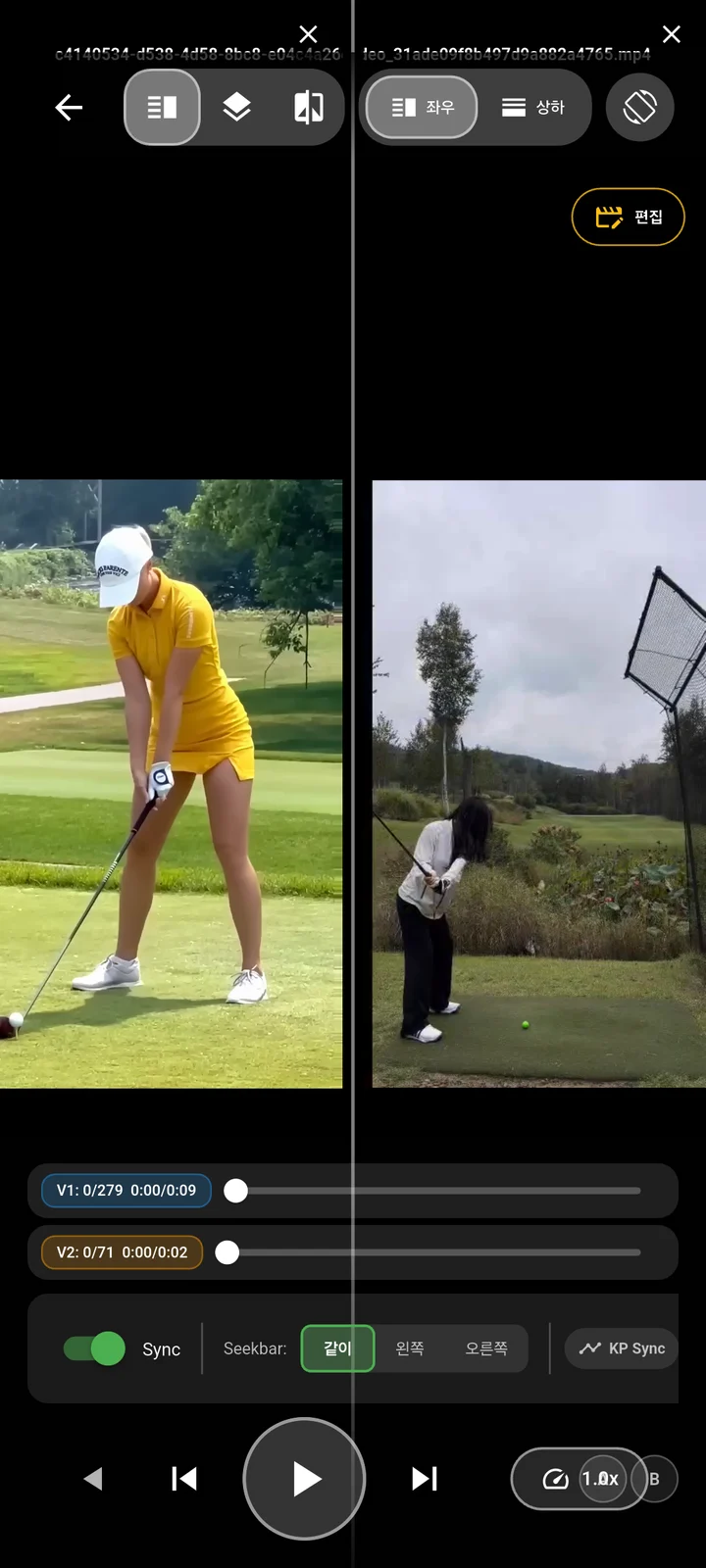
- Use side by side to keep both full movements visible. A stacked view can suit wide footage on a portrait phone. Overlay works best when the camera position and subject scale are similar; otherwise the mismatch in perspective dominates the picture.
- Simple comparison and picture in picture
- Simple comparison offers quick playback, frame movement, zoom and several layouts, including picture in picture. It is useful for an immediate visual check. Switch to the appropriate advanced or editing workflow when you need drawings or an exported composite.
- Advanced drawing and playback control
- Advanced comparison provides separate drawing on each video, synchronization controls and composite export. Align the movement first, then mark the observation. A line that stays on screen is a reference mark, not a tracked body point.
- Align the event, then check the surrounding motion
- Set or review the matching phase in both clips. Golf automatic synchronization can help when supported, but inspect the alignment yourself and adjust it if needed. Different movement durations mean that aligning one event does not make every other phase identical.
03 / WORKFLOW
Step by step
Choose the pair
Open comparison from a video or select two clips in the library. Use your previous attempt as the reference when you want to track a change across sessions.
Start side by side
Use the left–right layout for a quick view of both clips. Try a stacked layout when it better fits the movement and screen orientation.
Align the action
Pause each clip at the same event and use the synchronization or offset controls available in the selected comparison mode. Do not assume that both files starting at zero means the actions match.
Move together, then inspect separately
Replay the aligned pair slowly. In advanced comparison, select the seek target when you need to adjust just one clip, then return to shared playback.
Save a specific observation
Use the available drawing or screen capture tools to show the point you found. When you need a combined video, open the comparison editor and review the output before sharing.
04 / SETTINGS & EXAMPLES
Choose your workflow
| Quickly inspect two attempts | Simple comparison Choose a layout and align the relevant event. |
|---|---|
| Explain differences with marks | Advanced comparison Draw on the appropriate video after alignment. |
| Deliver an edited comparison clip | Comparison in the editor or supported composite export Preview the full interval, layout and audio. |
05 / OBSERVE
What to look for
| Timing | Check the event used for alignment again after changing clips or playback settings. |
|---|---|
| Scale and perspective | Keep the body or subject at a comparable size. A closer camera can exaggerate a small movement. |
| Layout | Side by side keeps each image separate. Overlay can help when the framing is very similar; its usefulness drops when the camera views differ. |
06 / NEXT PRACTICE
Compare your own previous attempt first
Use a clip from the same place and camera position as a baseline. Align one shared event, watch the surrounding interval and save one observation. A reference athlete can give useful context, but differences in body proportions, task and camera position make exact visual imitation a poor comparison target.
Get the app07 / CHECK AGAIN
Common pitfalls
Comparing different phases
If one clip is at the top and the other is already moving down, realign them before evaluating the positions.
Using every overlay at once
Begin with a clean pair. Add a line or a second view only when it answers your question.
Confusing playback with export
A viewing layout is not automatically a saved comparison video. Use the editing or export controls when you need a file to share.
08 / FAQ
Questions, answered
Can I compare videos with different lengths?
Yes. Align the action you want to study rather than matching the start or end of the files. Clip length and frame rate can differ, so check the synchronization around your chosen event.
Are all layouts available in every comparison screen?
No. Simple and advanced comparison modes offer different controls. Side-by-side, stacked and overlay views are available in supported modes; select the mode that fits the task.
Can I export the comparison?
Supported comparison and editing workflows can combine the clips into an output video. Review the selected layout, interval and audio before exporting; viewing two clips alone does not create a new file.