01 / PREPARE
Before you start
- Keep the original video so you can return to the complete recording.
- Decide whether the output is for technique review, a lesson or a public highlight.
- Choose the movement before selecting a crop or aspect ratio.
- Check storage space and keep the app’s export process open until it completes.
02 / FEATURES
Know what the editor controls change
The preview, timeline and tool panel work together. Start with the interval, choose the pace, then check framing and sound. Use the editor mode that has the controls needed for your output.
- Range: trim without losing the setup
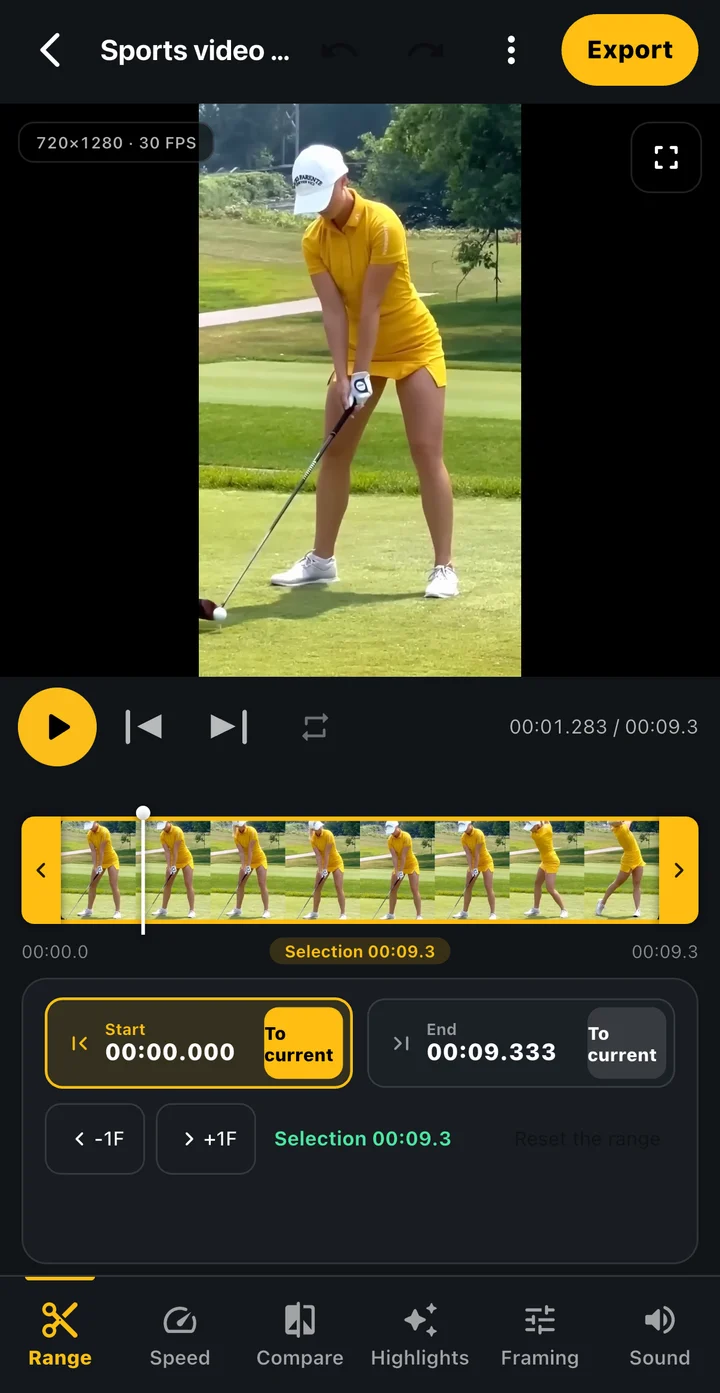
- Drag the start and end handles on the filmstrip and watch the preview at each boundary. The current-position action moves a boundary to the frame you are viewing; frame adjustment helps refine the selected edge. Preview the complete selection after changing either end.
- Speed: viewing pace and output duration
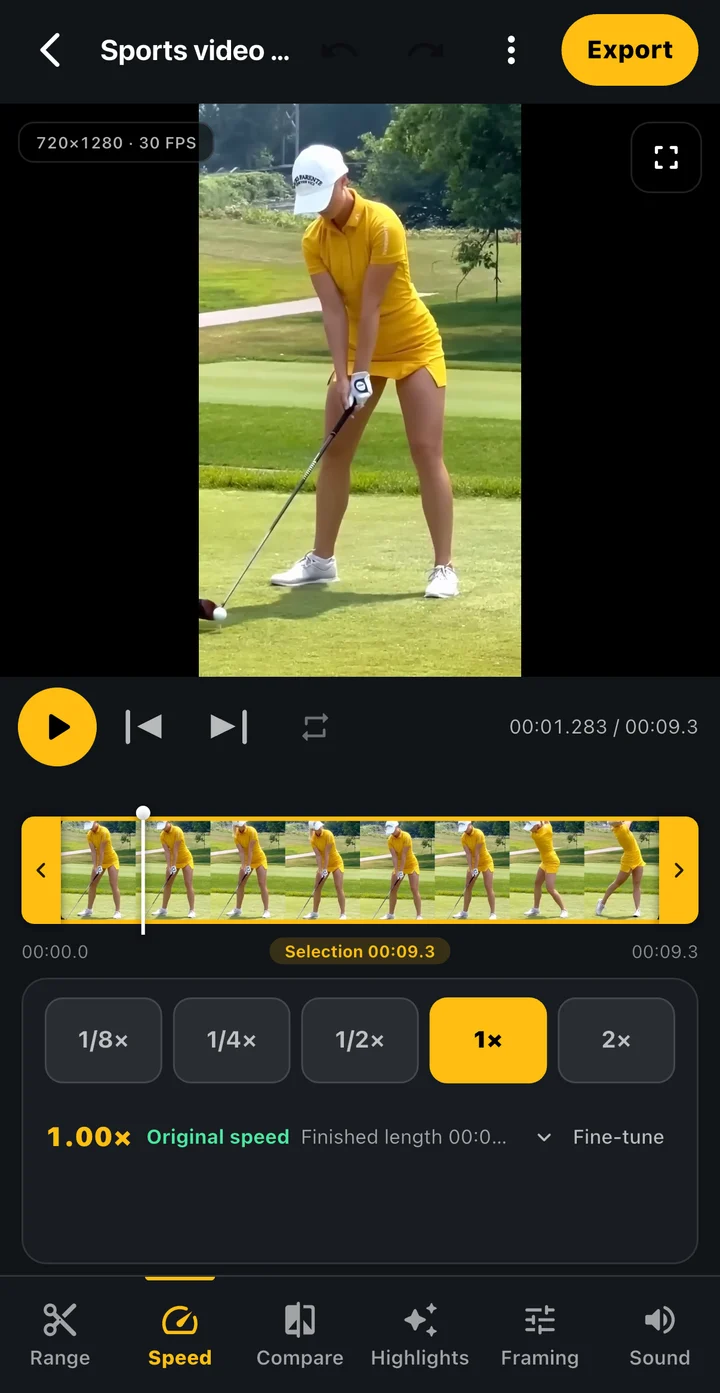
- Simple Editor offers presets including 1/8×, 1/4×, 1/2×, 1× and 2×, with further adjustment where available. Slower output lasts longer. For example, a four-second interval at half speed becomes roughly eight seconds. Inspect both duration and audio before export.
- Compare: an event inside two complete clips
- Choose the reference video and set the corresponding event in each clip. The editor uses the aligned event with surrounding footage so you can keep setup and follow-through. Review the chosen side-by-side, stacked or other supported layout before export.
- Framing, sound and export
- Choose framing that keeps the full action visible and select the audio you need. The export sheet lets you review output settings before rendering. Keep the process open until completion, then play the exported file to check boundaries, orientation and sound.
03 / WORKFLOW
Step by step
Choose an editing mode
Use Simple Editor for trimming, speed and comparison work. Choose Advanced Editor for multiple clips, speed curves, freeze frames or layered captions and audio. Use Quick Highlight to review candidate scenes in longer supported recordings.
Set the interval
Move the start and end handles around the action. Use frame controls to refine the boundary while leaving enough preparation and follow-through.
Choose the playback speed
Select a slower speed when it makes an important moment easier to see. Review the output duration and use normal-speed context where it helps the viewer follow the action.
Make the point visible
Add a comparison, drawing, caption or voice explanation using the controls in your chosen editor. Keep text clear of the body, equipment and other details you want to show.
Preview and export
Watch the complete edit with audio before exporting. Check the first and last frames, framing and sound, then open the finished file to confirm the result.
04 / SETTINGS & EXAMPLES
Choose your workflow
| One clean practice clip | Simple Editor: range and speed Keep the movement complete and easy to follow. |
|---|---|
| Several clips with detailed presentation | Advanced Editor Arrange the timeline, captions and audio. |
| Selected scenes from a long recording | Quick Highlight or the available highlight tool Review candidate cuts and preview the chosen sequence. |
05 / OBSERVE
What to look for
| Trim boundaries | Make sure the cut preserves the setup and ending needed to understand the action. |
|---|---|
| Speed and duration | Slow motion lengthens a clip. Check that the pace still matches the purpose of the video. |
| Crop and audio | Preview the full movement after cropping, and listen for unwanted background sound before sharing. |
06 / NEXT PRACTICE
Build a short lesson clip
Keep one complete attempt, slow the interval you want to discuss and add a concise explanation. Use a comparison only if it makes the point clearer. Export the clip and watch it once as a viewer: can someone who was not at the session understand where to look?
Get the app07 / CHECK AGAIN
Common pitfalls
Cropping before checking the full motion
Review the complete action after changing the frame so the club, racket or feet do not disappear at the important moment.
Expecting slow motion to add missing detail
Slower playback changes timing. It does not recover a blurred contact point or frames that were never recorded.
Leaving export verification until after sharing
Open the output file first. Confirm duration, orientation and sound before sending it.
08 / FAQ
Questions, answered
Which editor should I start with?
Start with Simple Editor when you need a trim, speed adjustment or comparison. Use Advanced Editor when the project needs multiple clips or more detailed timeline layers.
Can I slow a video down to one-quarter speed?
Supported editing controls include slower presets such as 1/2× and 1/4×. The available controls depend on the selected mode; preview the result before exporting.
Does an edit change my original recording?
The export workflow creates an output video. Keep the original in your library and check the destination of the exported file before organizing or deleting source clips.