01 / PREPARE
Before you start
- For technique review, keep the player, racket and full movement visible.
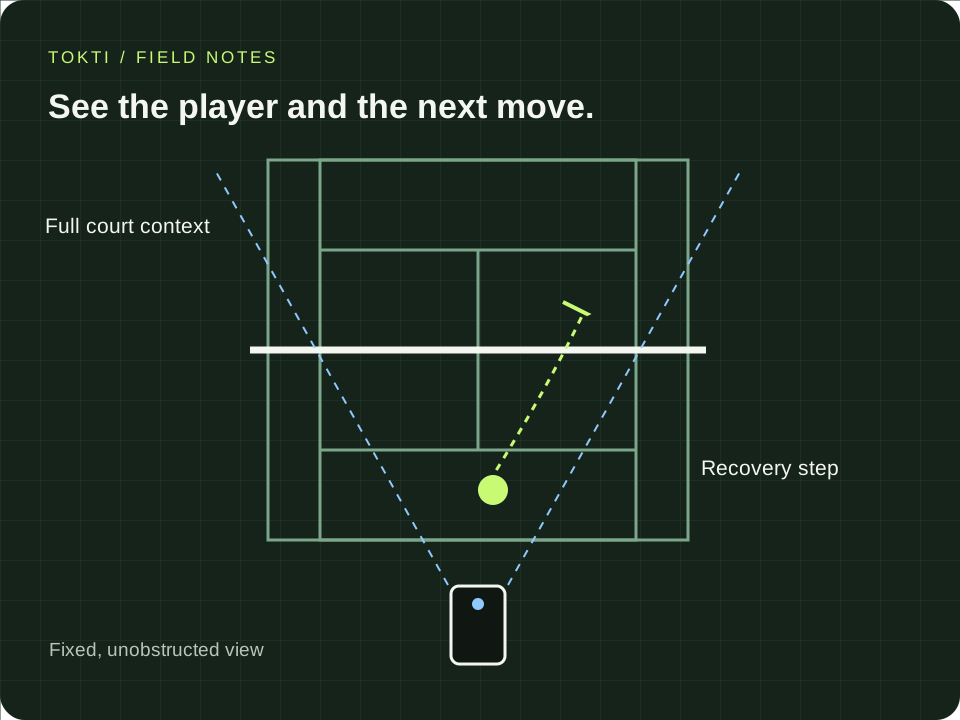
- For rally review, use a wider view that preserves the relevant court context.
- Place the phone securely outside the playing area and obtain any venue permission needed.
- Record a short test and check that the action is visible before recording a full set.
02 / FEATURES
Move between a stroke and the whole rally
A close technique clip and a full-court recording serve different purposes. TOKTI’s general playback tools help with individual movements; the tennis workflow helps organize longer recordings into rally intervals.
- Stroke review
- Open a clear serve or groundstroke, slow playback and step through the preparation, contact region and recovery. Keep the racket and feet visible. A full-court recording may show tactics well while leaving too little detail for a close joint-position review.
- Rally intervals
- Tennis analysis uses strike-sound patterns to propose rally intervals. Audible ball strikes and a stable recording help; nearby courts, wind or a missing audio track can affect the candidates. Check the actual footage before accepting the cuts.
- Rally-only and full playback
- Use rally-only playback to move through the proposed playing intervals, then return to the full recording when you need the lead-in or the time between points. The original context helps you understand a cut that appears to start or end too early.
- Manual boundaries and highlight editing
- Review each useful rally’s start and end, correct the proposed boundaries and retain the relevant intervals. In the editor, preview the selected scenes and their total length before adding captions, speed changes or other presentation choices.
03 / WORKFLOW
Step by step
Define the review question
Choose a serve, a stroke or a rally pattern. Avoid mixing several questions into the first clip.
Select a useful interval
Open the recording and keep enough footage before and after the action. For a serve, include preparation through landing; for a rally, preserve the sequence needed to understand the point.
Slow down the movement
Use frame stepping and lower playback speed around the part you want to discuss. Mark an observable position with a simple drawing if it helps explain the question.
Compare similar attempts
Match the camera view and movement phase. Compare serves with serves or the same kind of stroke rather than forcing unlike movements into one timing reference.
Build a review highlight
Use Quick Highlight or the editor to select the intervals you need. Check each proposed interval and the final cut, then share a short clip with a precise question.
04 / SETTINGS & EXAMPLES
Choose your workflow
| Inspect a serve or stroke | Clear technique clip + frame controls Include preparation, contact and recovery. |
|---|---|
| Review a longer match | Tennis rally analysis Keep court context and audible strike sounds. |
| Make a short practice highlight | Reviewed intervals + editor Check cuts and the complete output sequence. |
05 / OBSERVE
What to look for
| Preparation | Keep the lead-in visible so the review includes how the player arrived at the action. |
|---|---|
| Contact region | Move through the neighboring frames. A low frame rate or motion blur may prevent you from seeing the exact contact instant. |
| Recovery and context | Keep the next movement or relevant court area in view. Cutting immediately after contact can remove the context of a rally. |
06 / NEXT PRACTICE
Create one clip for the next lesson
Select two attempts of the same movement from one session. Keep their lead-in and finish, align a shared phase and note one visible difference. Send both clips or an edited comparison to your coach with a question about the specific moment. Keep the original match recording for wider context.
Get the app07 / CHECK AGAIN
Common pitfalls
Using a wide match view for tiny details
Record a separate technique clip when the player is too small to inspect clearly.
Removing too much context
Leave enough before and after the event to understand the movement and rally.
Accepting every detected segment
Review suggested highlight intervals before export. Camera movement, background noise and scene changes can affect detection.
08 / FAQ
Questions, answered
Does TOKTI automatically score my tennis match?
This workflow focuses on video review and useful clip selection. Do not treat it as an automatic line-calling or official match-scoring system.
Can I make highlights from a long recording?
Yes. Use Quick Highlight to review candidate intervals or select and trim scenes in the editor. Check the selected scenes before making the final output.
Can I request AI feedback on a serve?
Choose an available tennis movement in the AI coaching catalog and provide a clear clip of that movement. Availability and analysis usage are shown in the app.