01 / PREPARE
Before you start
- Select one complete, clearly visible movement rather than a compilation.
- Keep the subject visible and avoid a camera cut during the action.
- Choose the sport and movement that match the clip.
- Check sign-in, network access and the analysis usage shown in the app before submitting.
02 / FEATURES
Read the report as a set of connected tools
A report is more useful when its summary, phase notes and practice suggestions lead back to the source video. Start with the visible evidence and work toward one clear practice task.
- Summary and recording quality
- Read the overview together with any recording-quality feedback. Lighting, subject visibility and framing affect what can be observed. When the report asks for a clearer recording, address that before trying to interpret a detailed score.
- Movement phases and the player
- Phase notes organize the action into smaller parts. Use the report player and available phase controls to revisit the corresponding moment. Watch the surrounding movement too, because a phase thumbnail alone cannot explain timing.
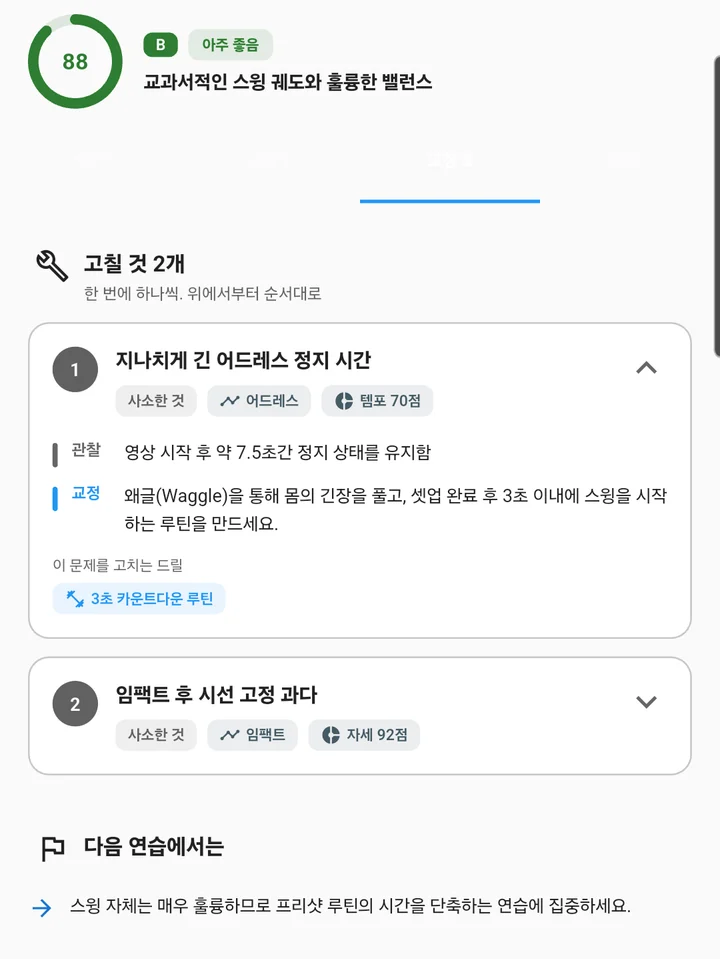
- Correction cards
- Expand a correction card to see the observation, suggested adjustment and related drill. The phase and category labels help you find where the point belongs. Use the scene-viewing action when available to connect the wording with the recording.
- Practice and report history
- Work through the suggested drill steps and use practice recording when you want to capture a follow-up. Report history lets you revisit earlier feedback. Compare like-for-like recordings and use the visible explanation alongside any change in score.
03 / WORKFLOW
Step by step
Select the movement and interval
Open AI coaching from your video. Choose the sport, the movement and the portion of the clip to analyze so the request matches what is visible.
Review the request before analysis
Confirm the selected clip and the app’s current usage or credit information. Submit once the footage and options are ready.
Read the overview in context
Use the summary as an entry point. Open the source video and connect each observation to the movement it describes rather than treating the headline score as the whole result.
Choose a correction priority
Read the phase notes and correction cards. Start with one point you understand and a suggested drill that fits your practice or your coach’s plan.
Record the follow-up
Film a new attempt using the same view. Compare the original and follow-up clips, and use the report history to return to the earlier feedback.
04 / SETTINGS & EXAMPLES
Choose your workflow
| The recording is unclear | Start with quality feedback Prepare a more visible, complete movement. |
|---|---|
| The report lists several corrections | Open one priority card Connect its observation to the corresponding scene. |
| You want to revisit a practice task | Drill steps and report history Film a comparable follow-up and review the same point. |
05 / OBSERVE
What to look for
| Evidence in the clip | Check that the body part or phase discussed in the report is actually visible. |
|---|---|
| A manageable priority | Pick one correction to explore. Several simultaneous changes make it harder to tell what produced a visible difference. |
| A comparable follow-up | Use the same camera setup and movement for your next clip. Changed filming conditions can make a trend difficult to interpret. |
06 / NEXT PRACTICE
Use a report → clip → question loop
Read one correction card, replay the corresponding part of the video and note what you can see. Try the suggested exercise only when you understand the task, then record another attempt. If the wording is unclear or conflicts with your coach’s instruction, share the clip and ask about that specific point rather than following every suggestion at once.
Get the app07 / CHECK AGAIN
Common pitfalls
Treating the score as a universal ranking
A report belongs to a particular recording and analysis context. Use its observations to guide a review instead of comparing unrelated scores.
Submitting a distant or obstructed subject
Prepare a clearer recording when the movement is too small or hidden. More text cannot recover details that the camera did not capture.
Expecting hardware measurements
Video feedback is not a substitute for measured ball flight, force, spin or a clinical assessment.
08 / FAQ
Questions, answered
Which sports can I select?
The app’s coaching catalog includes golf, park golf, tennis, baseball, basketball shooting, climbing and other movement options. Check the current catalog in the app for the available sport and movement combinations.
Is AI analysis included without limits?
AI coaching uses online processing and has usage or credit limits. The app displays current access and any required authorization before an analysis.
What if the report does not match what I see?
Recheck the selected sport, interval and camera visibility. Use the source video as context and discuss unclear technical advice with your coach. A report should help you ask a more specific question.