See how you move
View the joints and lines estimated by the pose model, then examine your position frame by frame.
Golf video and round records, together in Tokti Golf
What would you like to do?
All featuresAI swing analysis
Review your posture and AI coaching report. Take the suggested drills into your next practice session.
Connect the swing you see with a movement to examine and something to practice.
 Enlarge screen
View the joints and lines estimated by the pose model, then examine your position frame by frame.
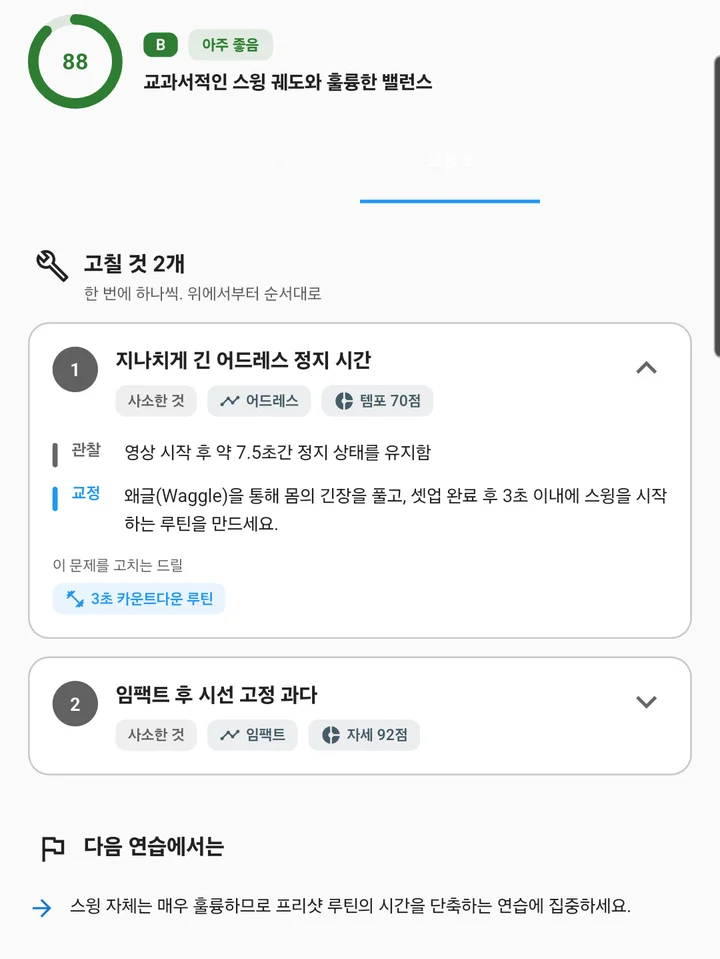
Review AI observations and explanations of posture and tempo for your selected clip.
Read the priority correction points and related drills, then work on one at a time.
App screens
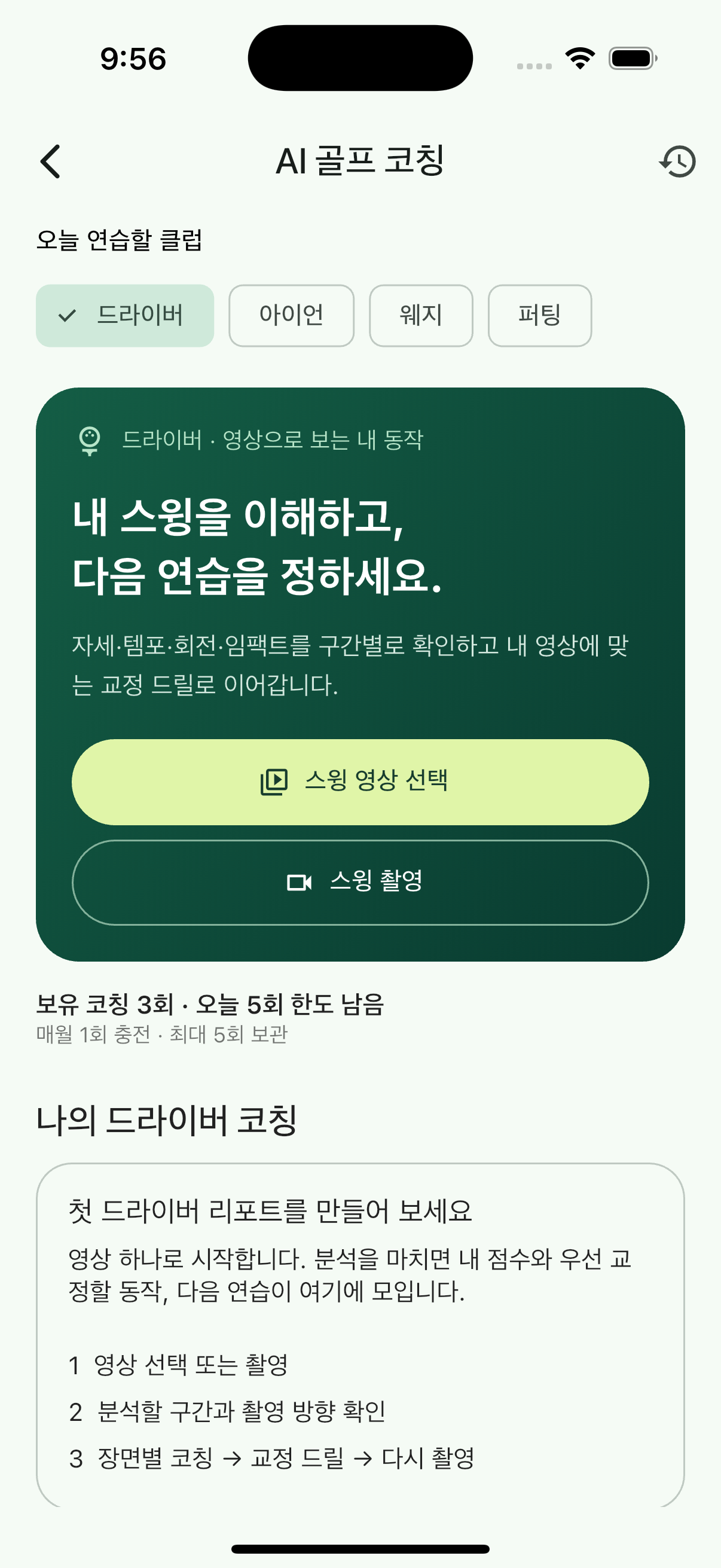
From driver to putting, choose the club you are practicing and import or record a video. The Tokti Golf coaching screen connects your swing with your previous reports.
Select driver, iron, wedge or putting to match your video. Review records for the same club together.
Select a saved swing or record one. Prepare a section that keeps your full body and club in view.
Review detected joints and movement trails in the AI report video, then read the related corrections and drills. Live posture display can be enabled in supported camera settings.
 Enlarge screen
Actual screens from the shared Tokti Player module and Tokti Golf. Records and analysis results use example data; screens may vary by app version.
Getting started
Record or import a video with your full body and club visible. View posture overlays in the supported camera or AI report.
In AI golf coaching, confirm the club, camera direction and clip segment before starting the analysis.
Read the observations, correction points and drills. Record again with the same club and a similar view to review your practice.
Explore the details
Learn how pose display differs from coaching, how to prepare a useful clip and how to review it in detail.
The skeleton overlay shows joints and lines estimated by a pose model. AI coaching analyzes a selected swing segment and explains observations, correction points and practice drills.
Keep your full body and club in the frame with a clear view of your body. Dim lighting or people and objects blocking the view can make pose detection difficult.
AI golf coaching offers driver, iron, wedge and putting selections. Match the club, camera direction and clip segment, and review previous recordings made under similar conditions.
They are estimates from video and can be affected by camera angle and occlusion. Review them alongside the original movement rather than treating them as measured 3D data.

TOKTI GOLF · AI & skeleton
Install Tokti Golf to explore pose display and an AI coaching report with your own swing.
Check the store for device support and in-app purchase details. Check the installed app for available features and analysis conditions.