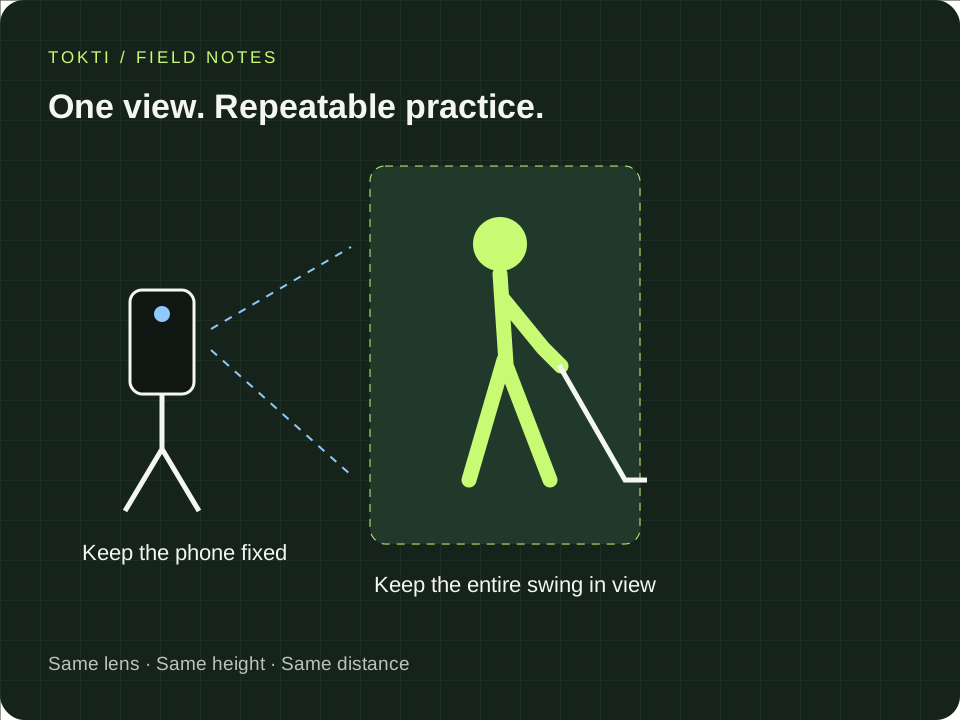
01 / PREPARE
Before you start
- Set the phone on a stable support outside the swing area.
- Frame the golfer and club with room at the top and sides.
- Avoid strong backlight, a moving phone and people repeatedly crossing the frame.
- Check available capture modes, storage space and replay usage in the app.
02 / FEATURES
Set up the clip you want to review
Automatic capture, the saved interval and replay are connected but separate settings. Make one trial recording before a practice set so you know what the camera saves and where that clip goes.
- Golf AUTO capture
- Select golf mode and enable the available automatic capture option. Check the framing and detection state before starting. An unsupported camera mode needs a supported lens or frame-rate choice; manual recording remains a way to capture a reviewable clip.
- Lead-in before address
- The golf capture settings include a lead-in before address, with 1, 2 or 3 seconds. Use the extra context when you want to see how you settle into setup. Review the saved clip to make sure the interval contains the movement you intended.
- Replay speed and repeats
- Replay choices include normal, half and quarter speed, with repeat options such as 3, 5 or continuous. A shorter review fits a practice set; a longer or slower review helps when you want to inspect one attempt before continuing.
- Replay folder or retained library clip
- When the replay-folder option is enabled, automatic clips go to temporary replay storage. Use the review screen’s keep action for attempts you want to retain. Confirm where clips are stored before treating a whole session as a saved record.
03 / WORKFLOW
Step by step
Choose golf capture
Open the capture screen and select the golf mode that supports automatic capture on your device. Confirm the mode shown before starting your session.
Check the camera view
Use the available framing guides and position the phone so the entire movement is visible. Make a test swing without changing the camera position.
Wait for readiness
Follow the capture screen’s readiness indication. Start your swing after the app is ready, rather than while it is finishing the previous replay.
Review the saved interval
Choose the replay speed and repetitions available in the app. Check that the saved clip includes the action you wanted to review.
Return to the next attempt
When the app returns to capture standby, make the next swing. Keep useful clips and review them together after the session.
04 / SETTINGS & EXAMPLES
Choose your workflow
| A quick check between swings | Brief replay at a comfortable speed Return to practice after checking one point. |
|---|---|
| Review the setup as well as the swing | Add lead-in before address Check the beginning of the saved clip. |
| Keep only selected attempts | Replay folder and the keep action Retain the useful clips deliberately. |
05 / OBSERVE
What to look for
| Before the session | Confirm that the phone remains still and the full movement fits inside the frame. |
|---|---|
| After the first capture | Check the beginning and end of the saved clip. Reframe or adjust the available capture settings before continuing if the motion is cut off. |
| Between swings | Let the replay finish and look for the ready state. A repeatable pause helps keep the recording routine predictable. |
06 / NEXT PRACTICE
Start with a short trial
Capture one swing, watch its replay and check the framing. Repeat the test after any camera move. Once the loop works for your setup, leave the phone in place for a short set and select one clip to compare with your earlier practice. This keeps the setup check separate from the swing review.
Get the app07 / CHECK AGAIN
Common pitfalls
A swing is missed
Check framing, lighting and readiness first. If the scene remains difficult to detect, record manually and use the same playback tools afterward.
Choosing a frame rate before checking support
Use a mode the app and device actually offer. Supported 120/240 fps options vary with the phone, lens and resolution.
Letting every replay become a long interruption
Choose replay settings that fit your practice. Save deeper comparisons for the end of a short set.
08 / FAQ
Questions, answered
Does automatic capture work for every sport?
This automatic swing workflow is designed for golf. General recording, slow motion and editing work with other sports videos; specialized workflows differ by sport.
Does it work on every phone?
Capture modes depend on device hardware, operating system and camera support. Check the options available on your device. Manual recording remains a way to prepare clips for review.
Can I change slow-motion replay settings?
Use the replay speed and repetition controls available in the capture screen. Automatic replay has usage limits; the app shows current availability.