01 / Before you begin
Before you begin
Small or soft footage: inspect the source
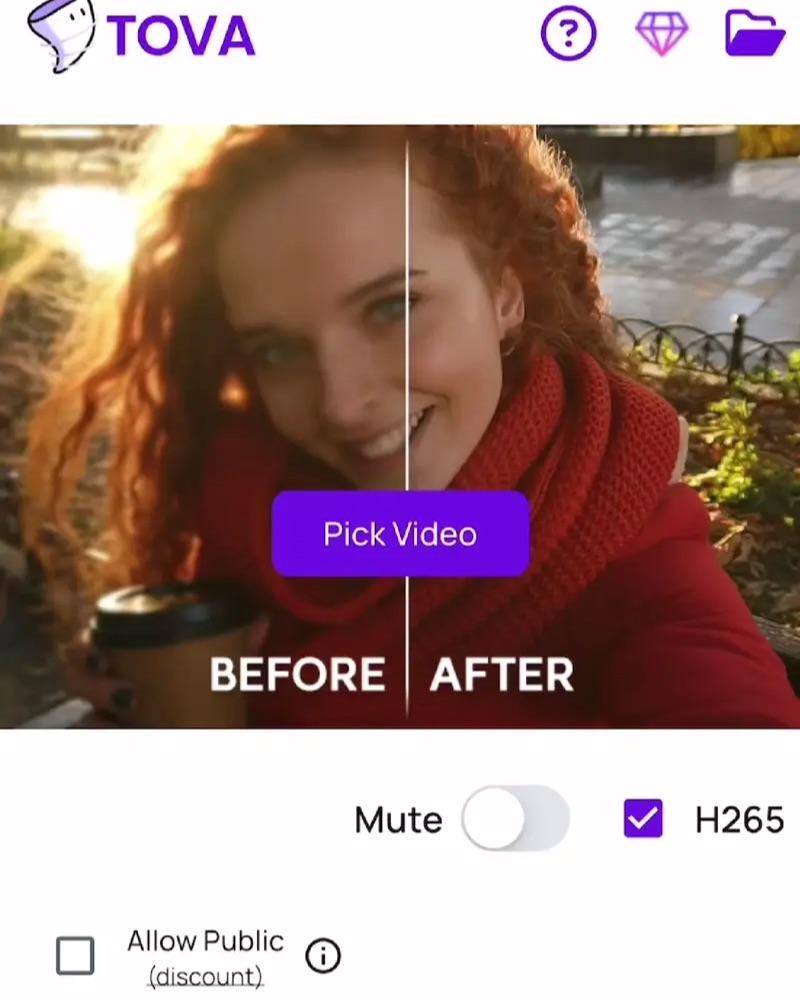
If the video only looks soft when enlarged, check its original dimensions first. Try a short Quality Enhancer result for detail and sharpness, and read the upscaling guide when larger output is the goal. Do not expect severe focus errors or missing text to be recovered exactly.
Dark or unbalanced color: use color controls
If shapes are visible but faces are dark or color looks wrong, adjust brightness, contrast and color in the editor. Make small changes while watching skin and white objects. Raising brightness can make shadow noise more apparent, so judge the picture rather than the setting alone.
Uneven movement: explore Smooth Booster
When motion between frames looks sparse, explore frame interpolation in Smooth Booster. Check fast-moving hands, balls and thin objects for doubled outlines. Interpolating movement and stabilizing camera shake are different operations.
Repeated brightness changes: try Flicker Remover
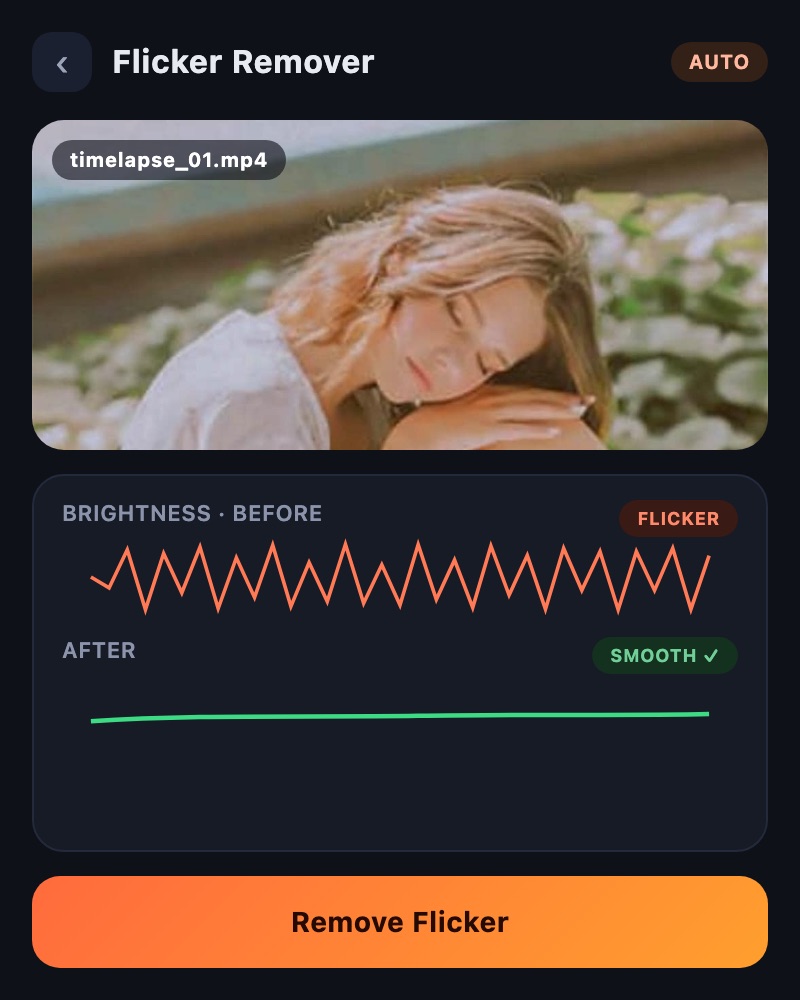
If light intensity repeatedly changes within a scene, test Flicker Remover. First watch the source to distinguish unwanted flicker from intentional lighting changes. Treat this separately from brightening an otherwise consistently dark shot.
A good export but a blurry shared copy
Compare the saved file with the uploaded playback. If the saved file is already soft, review export dimensions and quality. If it looks good locally, check delivery recompression and playback quality. For a new YouTube upload, also check whether higher-quality processing has finished.
Change one thing at a time
Applying several strong effects together makes it hard to identify a useful change. Choose the most distracting problem, test a short video and compare the same moment at the same displayed size. Finish the edit before making the compressed delivery copy.
02 / Follow these steps
Follow these steps
Compare the source and shared copy to identify where the problem appears.
Choose one priority: detail, brightness, motion or flicker.
Open the corresponding TOVA tool and check access terms and options.
Test a short video with representative scenes.
Inspect paused frames and playback for benefits and artifacts.
Keep useful results and complete the edit and export.
03 / Try this sequence
Try this sequence
For an indoor performance, first distinguish a dark face from periodically changing stage lights. Test color controls for brightness and Flicker Remover for repeated light variation separately. Comparing the same passage makes each change easier to judge than applying both immediately.
Before you export
- Have you located the problem in the source, export or shared playback?
- Have you tested a relevant tool one at a time?
- Have you matched the moment and displayed size?
- Are faces, lettering and fast motion natural?
- Have you reviewed both the saved file and shared playback?
Frequently asked questions
Does using every tool produce the best quality?
No. Apply only the processing that suits the source and goal. Unnecessary processing and repeated exports can increase time and size while making the result less natural.
Does Smooth Booster fix camera shake?
Frame interpolation in Smooth Booster differs from camera stabilization. Interpolation does not correct camera shake or lens distortion.
Does raising brightness create true HDR video?
Changing the appearance of brightness or color is different from encoding an HDR signal and color information. Check supported output and the destination display.
Are all enhancement tools free?
Terms differ by tool. Quality Enhancer currently checks Pro access; review availability and requirements for other AI jobs before starting.
Available tools and export settings vary by app version and device. Check the app for the terms of AI generation and cloud processing.