01 / Before you begin
Before you begin
Identify the visible problem
Check whether the whole image changes brightness or only part of it flickers. Recorded bands, screen scan patterns and intentional lighting changes do not all respond identically. Start with a section where the problem is easy to see.
Review motion as well as brightness
Do not judge the output only by whether the light variation decreases. Check that people and objects still move naturally. Choose the available motion-related options for the source and compare the resulting clip.
Keep correction and styling separate
Flicker processing addresses variations over time. If you also want a different color mood, review the corrected output first and then use the editor’s filters or color adjustments.
02 / Follow these steps
Follow these steps
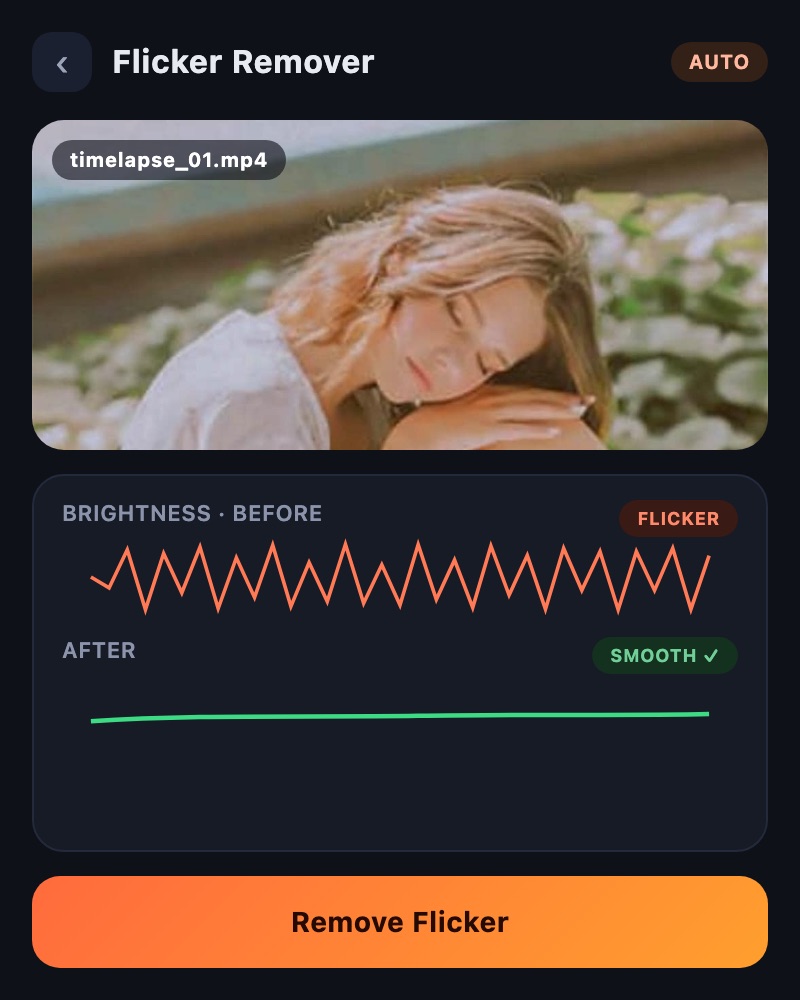
Open Flicker Remover and select the affected source.
Review motion-related and output options, then process the clip.
Compare the same portion before and after, checking brightness and motion.
03 / Try this sequence
Try this sequence
For an indoor product recording, check both a stationary section and a section where a hand moves the product. Even if the background appears steadier, review edges and movement before deciding that the processed version is ready to use.
Before you export
- Have you selected a section with recurring brightness changes?
- Have you checked the edges of moving subjects?
- Have you compared the same section before and after processing?
Frequently asked questions
Will it remove every LED banding pattern?
Complete removal is not guaranteed for every recording. Banding patterns, motion and exposure conditions can affect the result.
Does it also fix camera shake?
Brightness flicker and camera shake are different problems. This guide describes the tool for reducing flicker.
Available tools and export settings vary by app version and device. Check the app for the terms of AI generation and cloud processing.