01 / Before you begin
Before you begin
Frame for the destination
Choose 9:16 portrait, 1:1 square, 16:9 widescreen or another available canvas. After changing the ratio, review faces, PIP elements and text so important content is not cropped out.
Keep the edit available
Save a draft on your device and resume the project later. A draft is editable project state rather than a finished video, so keep the source media available for subsequent editing.
Choose output settings deliberately
The editor provides resolution, quality and frame-rate choices, including up to 4K and 60fps options. The appropriate choice depends on the source and device. Raising the numbers alone does not create detail missing from the recording.
Choose resolution, FPS and quality separately
Resolution is pixel width and height; FPS counts frames per second; quality settings affect output compression. Choose dimensions for the source and destination, select a frame rate for the recorded motion, then compare quality. Maximizing every setting can create a larger file than the project needs.
Decide between 30fps and 60fps
A static explanation and fast sports footage have different motion needs. Exporting a 30fps source at 60fps does not by itself create intermediate action. Explore Smooth Booster and the interpolation guide for that separate process. For 60fps footage, decide whether preserving the recorded cadence serves the result.
Inspect the finished file, not only the estimate
The size and processing time shown before export are estimates. Choose resolution, quality and FPS, check free storage and save. Review orientation, text placement, transitions, sound and actual size in the completed file.
02 / Follow these steps
Follow these steps
Choose the destination ratio and review subjects and text within the frame.
Save a local draft if you may want to revise the edit later.
Preview the edit, select output options and play the exported file before sharing.
03 / Try this sequence
Try this sequence
When using one travel project for both a Reel and a widescreen video, review the composition separately for each destination. Recheck text and PIP placement after changing the canvas instead of assuming the new ratio automatically produces the right framing.
Before you export
- Does the aspect ratio suit the destination?
- Have you kept the editable project as well as the export?
- Have you played the beginning, middle and end of the saved file?
Frequently asked questions
Are drafts automatically synchronized across devices?
The drafts described here are saved on the device. This does not imply automatic cloud synchronization.
What if the exported file is too large?
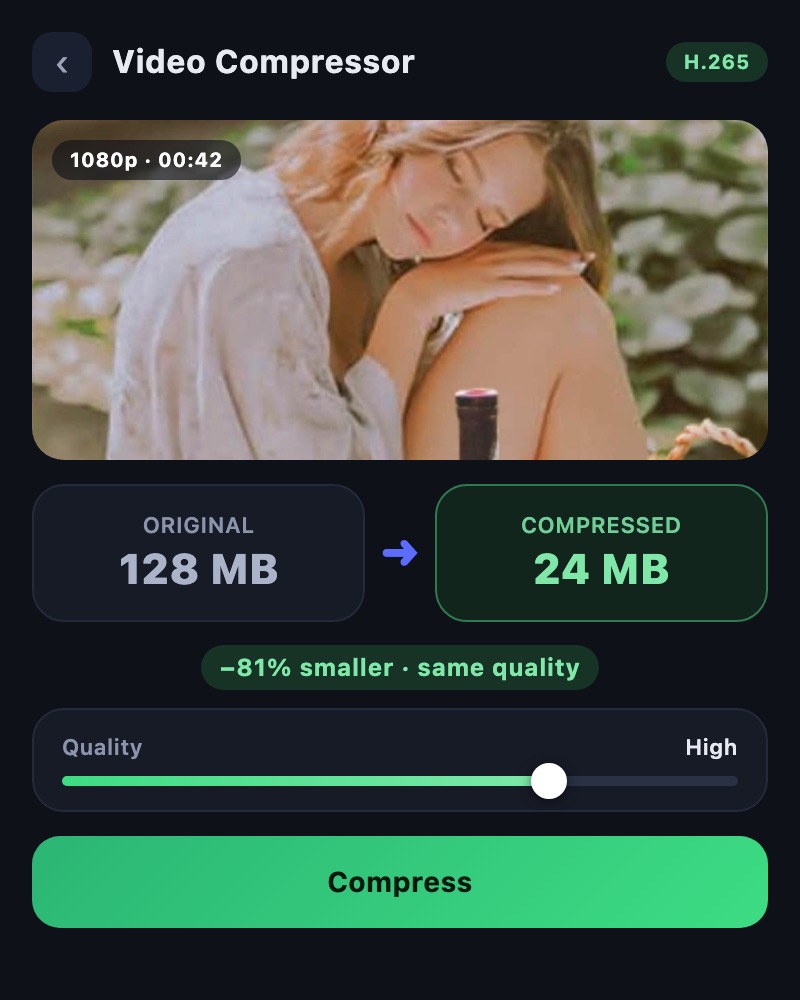
Reconsider the resolution and quality needed for the destination, or use Video Compressor on the finished video.
Can a high-bitrate export restore previously lost quality?
No. More output data does not accurately recover recording information already lost. Export from the best source with settings suited to the result.
Should I export again if a new YouTube upload looks blurry?
Check your saved file first. YouTube may need additional time to finish higher-quality processing after upload. Check processing status and playback quality before changing the export.
Available tools and export settings vary by app version and device. Check the app for the terms of AI generation and cloud processing.