TOVA / YOUTUBE SHORTS
Watch it in action

Your Footage. Your Style. ✨ TOVA Video Editor
An introduction to creative editing with TOVA Video Editor. Start below with trimming and sequencing, then follow the related guides for color, effects and audio.
Watch on YouTube ↗If the player is unavailable, watch on YouTube.
01 / Before you begin
Before you begin
Keep the moments that matter
Trim the pauses at the beginning and end of a recording, then split a longer clip to bring an important moment forward. Adjust individual clip lengths to remove repetition and make the sequence easier to follow.
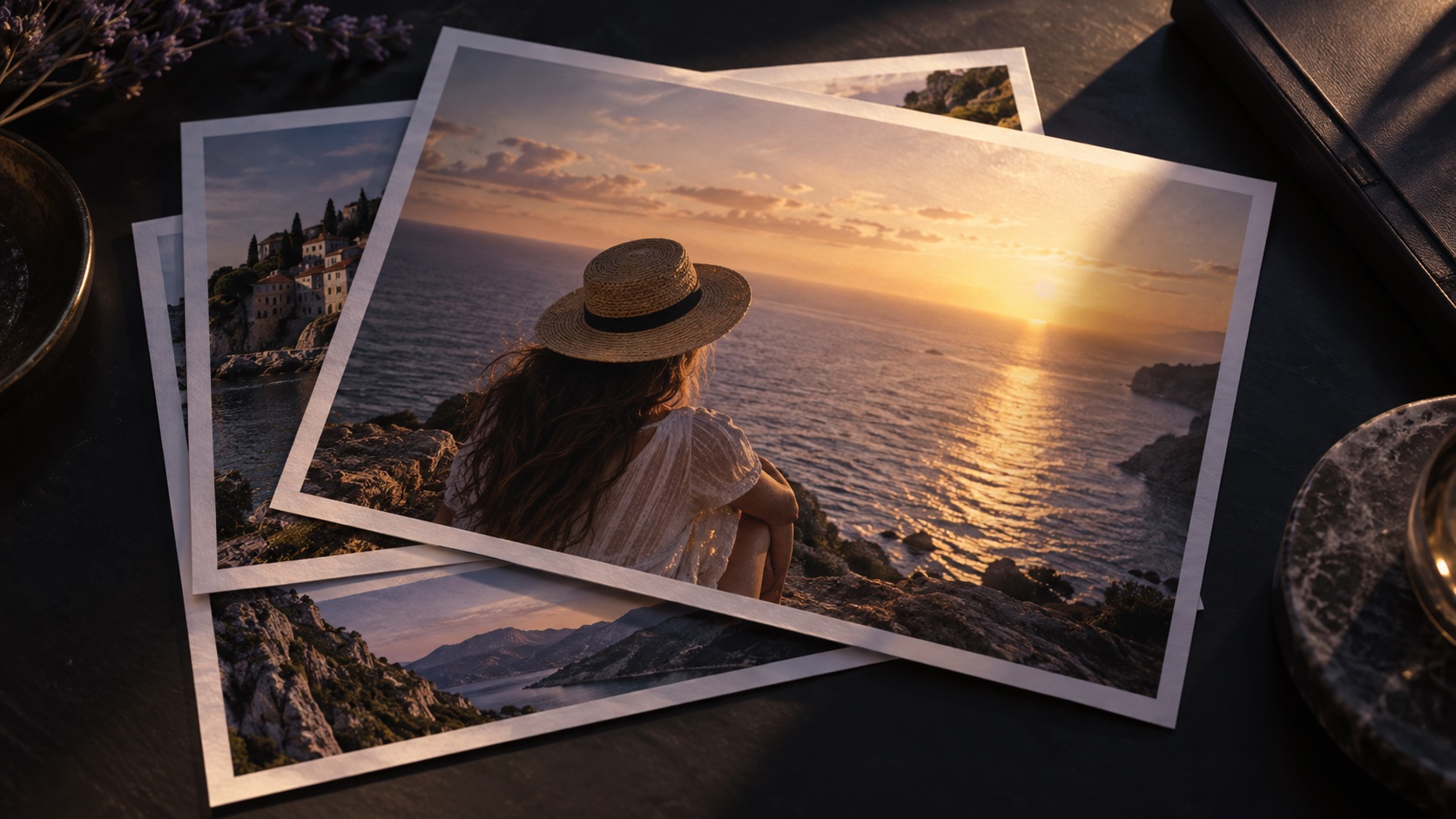
Mix still images with moving footage
Place photos between video clips to introduce a location, show a product detail or hold a memorable moment. Adjust how long a still stays on screen so it supports the pace of the surrounding footage.
Give transitions a purpose
Apply a transition at an adjacent clip boundary to communicate a change in place or time. Reserve stronger effects for meaningful changes and use simpler cuts when the action already carries the story.
02 / Follow these steps
Follow these steps
Open Video Editor and add the videos and photos you want to use.
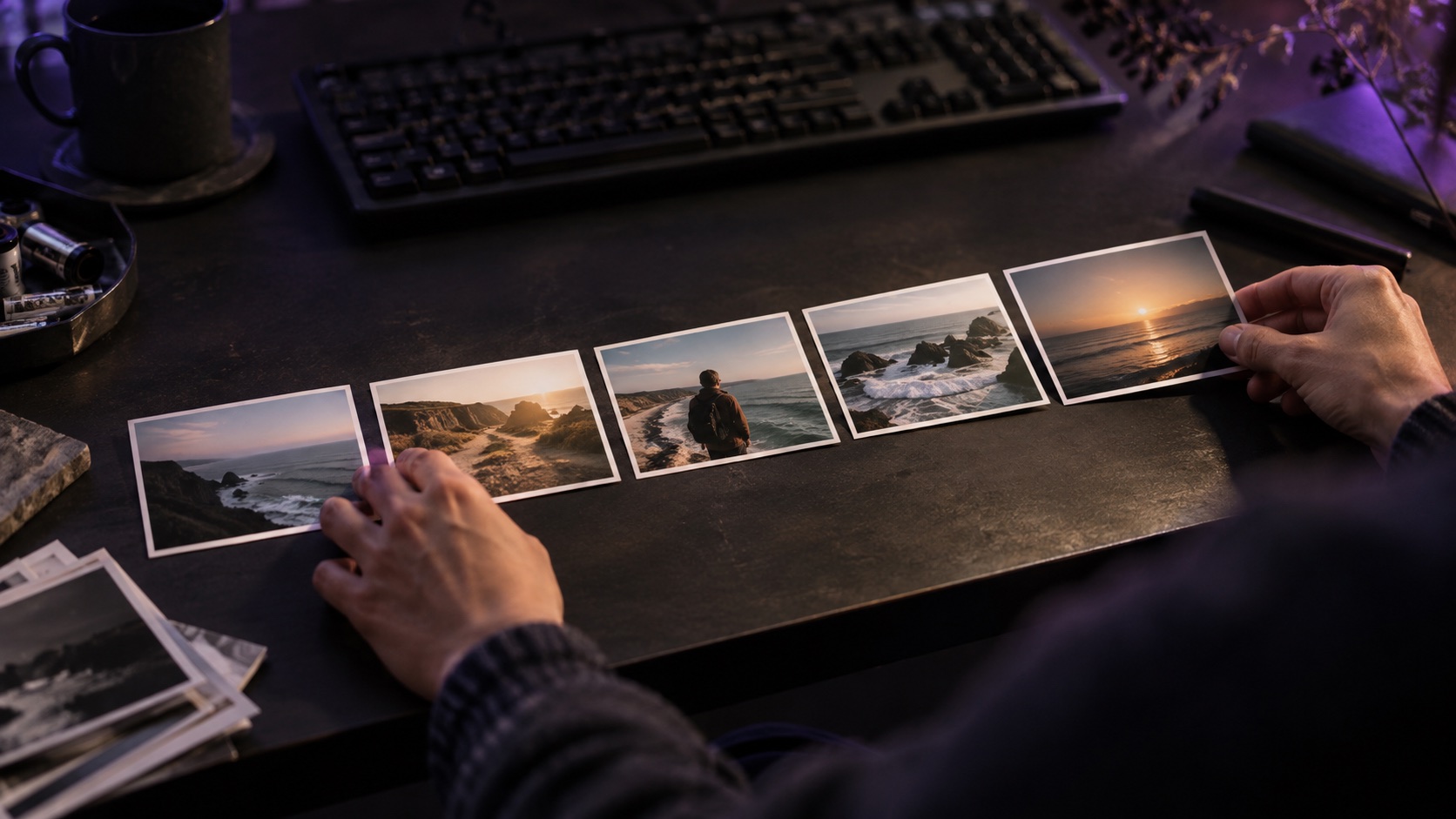
Trim and split clips, arrange the sequence and add transitions where they help.
Play the whole sequence, refine its rhythm and save a draft or export.
03 / Try this sequence
Try this sequence
For a travel film, try arrival footage, a landscape photo, a short movement clip and a closing group photo. Give the landscape room to breathe and shorten routine movement. The same material can tell a different story simply through its order and duration.
Before you export
- Does the opening communicate the subject?
- Have you removed repeated shots and pauses?
- Do adjacent clips play smoothly through each transition?
Frequently asked questions
Can I include photos on the timeline?
Yes. Combine video and still images and set how long photos appear. For a project built primarily from photos, explore the separate Slide tool as well.
How is a transition different from a cut?
A cut determines what you show and for how long. A transition controls how one adjacent scene changes into the next. Establish your sequence before choosing effects.
Available tools and export settings vary by app version and device. Check the app for the terms of AI generation and cloud processing.