TOVA / YOUTUBE SHORTS
Watch it in action

Turn Photos into a Video with Music & Transitions | TOVA Slide
Meet TOVA Slide and its photo, music, text and transition workflow. Follow the six steps below to choose your pictures, arrange their order and timing, and build your own album.
Watch on YouTube ↗If the player is unavailable, watch on YouTube.

A new angle for a title card: 3D camera concept
For an event invite or a product intro, a small camera move can give a flat graphic a sense of depth. This TOVA concept preview compares the same original card held flat with a planar perspective animation. It is a proposed effect made outside the released TOVA app, not a currently available TOVA feature. The preview does not reconstruct a room, a person or hidden surfaces in 3D. Would you use a move like this for an event invite or a product intro? Tell us your use case below the video. Current photo-to-video options elsewhere on this page are separate and depend on your app version.
Watch on YouTube ↗If the player is unavailable, watch on YouTube.
01 / Before you begin
Before you begin
Let selection create the story
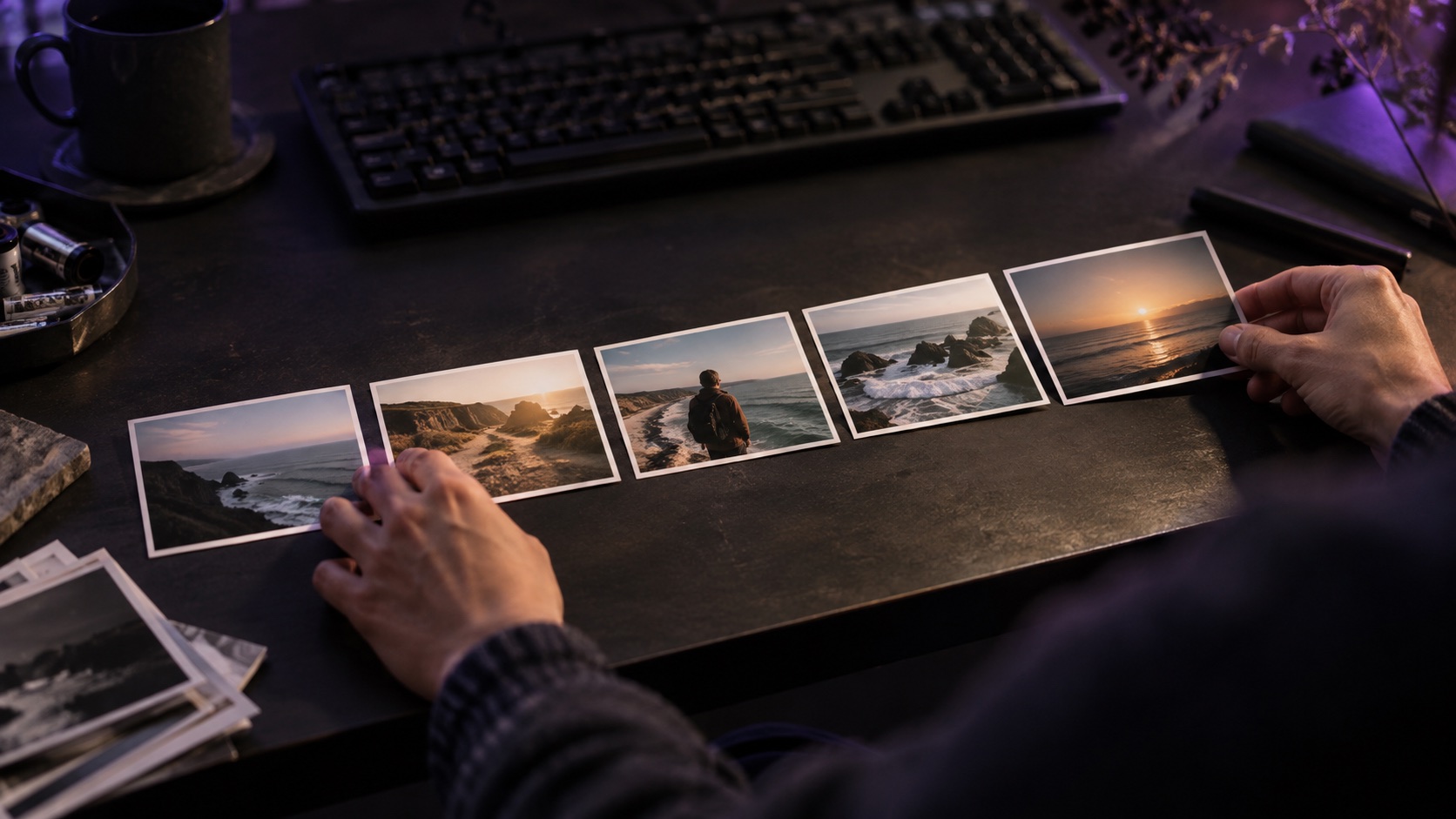
Choose photos for an opening, a central moment and a conclusion instead of adding the entire gallery. Alternate wider views with details and remove near-duplicates so each image contributes something new.
Connect images with context
Use music and short text to give the sequence context. A date, place name or brief explanation can make a photo understandable, while transitions help the collection feel like a continuous presentation.
Check the framing of every photo
Mixed portrait and landscape photos need a framing check. Review how each image appears in the chosen layout or template, especially faces and important details near the edges.
A new angle for a title card: 3D camera concept
For an event invite or a product intro, a small camera move can give a flat graphic a sense of depth. This TOVA concept preview compares the same original card held flat with a planar perspective animation. It is a proposed effect made outside the released TOVA app, not a currently available TOVA feature. The preview does not reconstruct a room, a person or hidden surfaces in 3D. Would you use a move like this for an event invite or a product intro? Tell us your use case below the video. Current photo-to-video options elsewhere on this page are separate and depend on your app version.
02 / Follow these steps
Follow these steps
Choose one subject and select an opening, a central moment and a closing photo. For a trip, sort images into places, activities and people.
Open Slide: Photo to Video in TOVA and import the photos. Starting with roughly 8–12 images makes it easier to remove near-duplicates.
Choose a composition for the destination. Review every image so faces remain visible in a vertical frame and the main scenery stays in a landscape frame.
Refine the sequence and timing. For a 30-second video with ten photos, around three seconds per photo is a useful starting point. Allow extra time for key images and text.
Add a short title, a place or date, and music. Begin with one or two transition styles so the effects support the photos.
Preview the full sequence and save using the output settings available in the app. Replay the exported file to check cropping, text and the end of the music.
03 / Try this sequence
Try this sequence
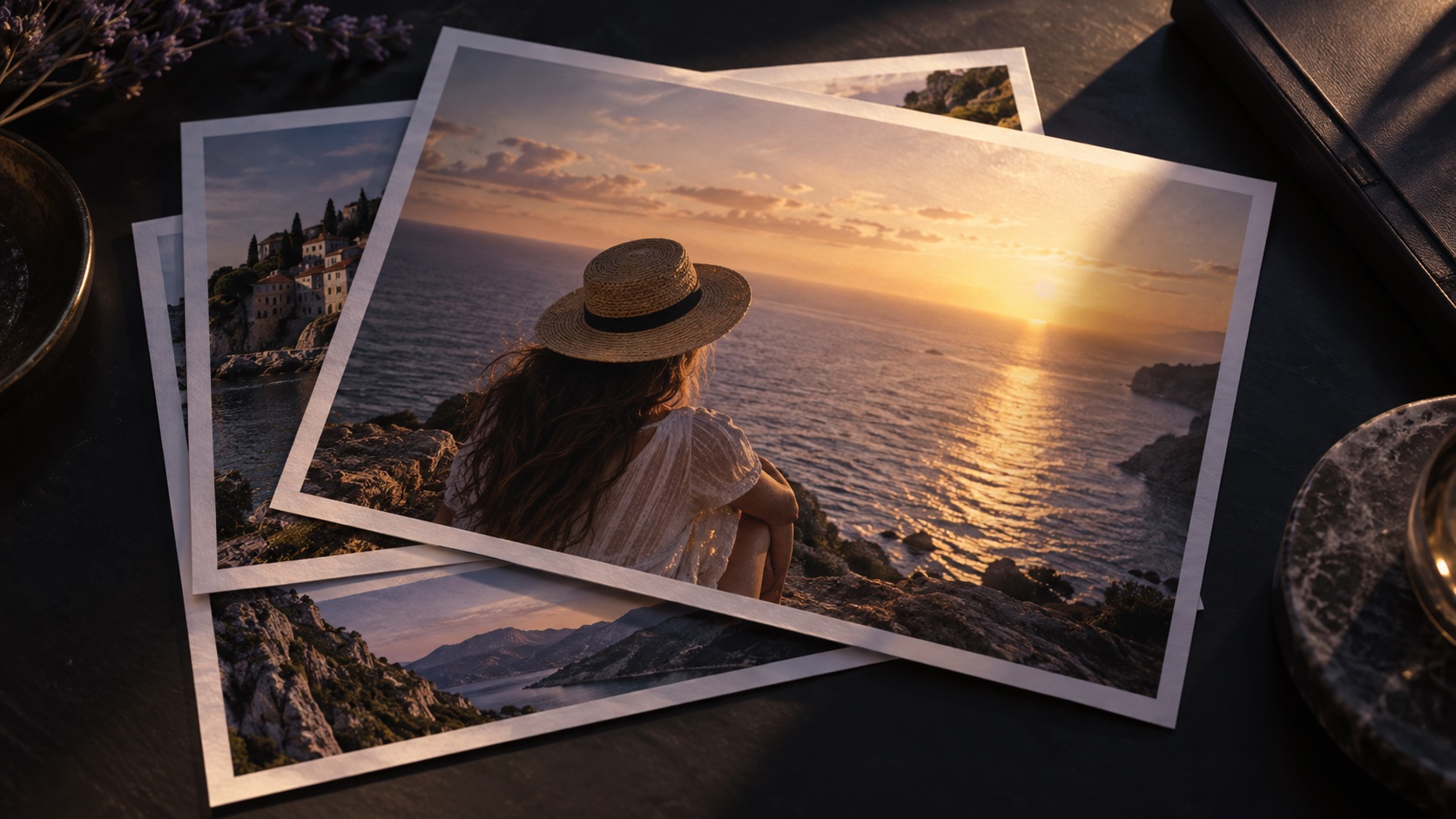
For a family trip, open with a photo of the place, build around expressions and activities, and close with a group photo. Give important images room to be seen and use short location labels rather than long explanations. The arrangement itself can carry much of the emotion.
Before you export
- Are faces and important details inside every frame?
- Is there enough time to read each caption?
- Does the music end cleanly with the last image?
- Have you watched the exported video all the way through on your phone?
Frequently asked questions
How is Slide different from AI image-to-video?
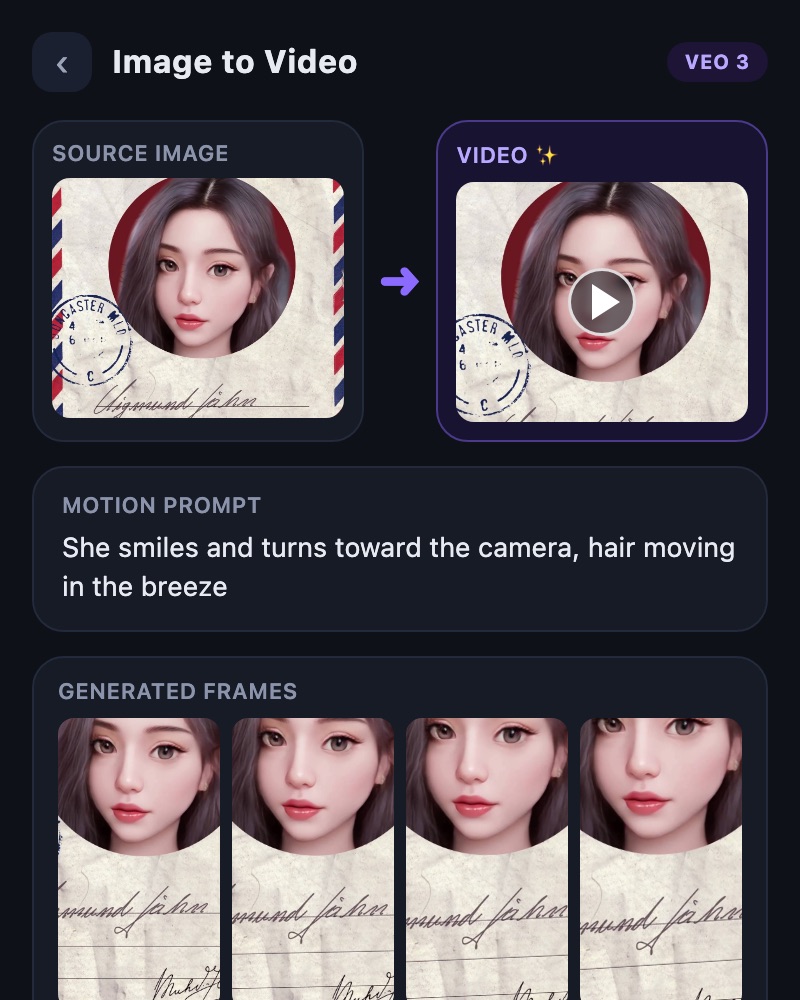
Slide arranges selected photos with music, text and transitions. AI image-to-video is a separate tool that generates new motion from an image.
Can I use photos in the regular editor too?
Yes. The Video Editor timeline is useful when you want to mix photos with recorded footage and refine the sequence clip by clip.
How many photos should I use?
Let the story set the length. As a starting point, try 8–12 photos and check that each image has time to register. Ten images in 30 seconds averages three seconds each, but captions and transitions may need more time.
Available tools and export settings vary by app version and device. Check the app for the terms of AI generation and cloud processing.