01 / Before you begin
Before you begin
Review highlights and shadows
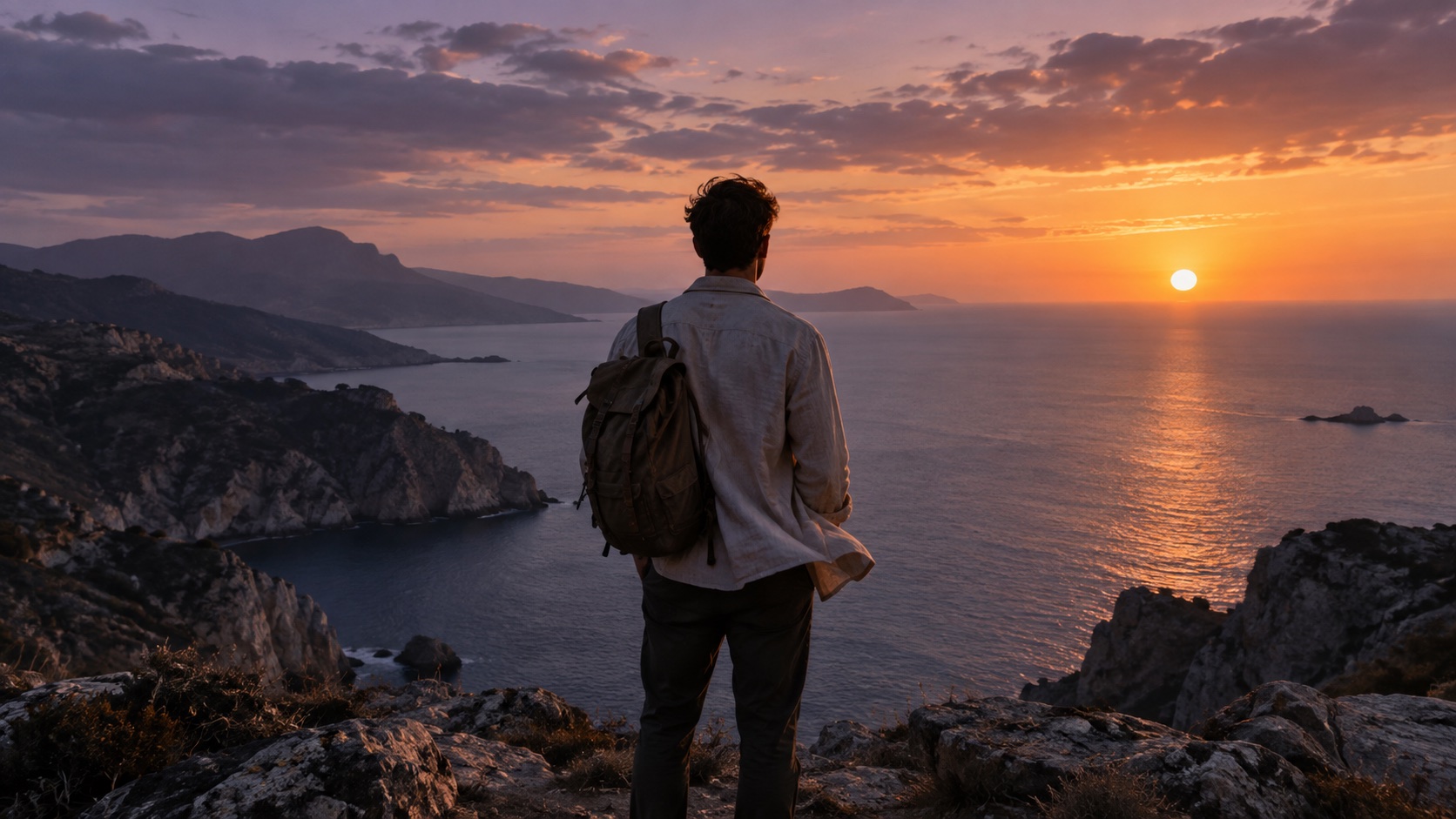
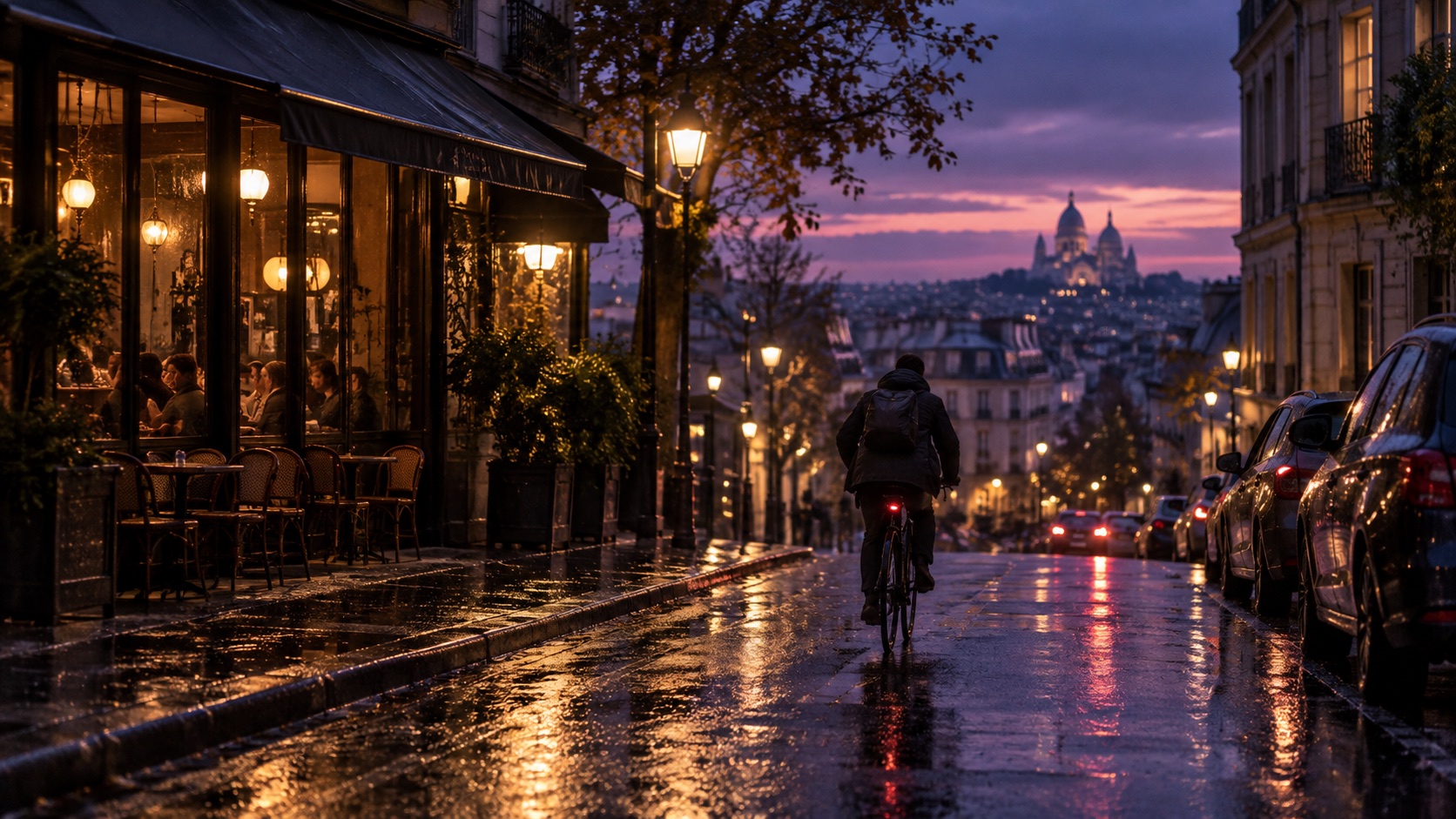
Look for blown-out skies and lost shadow detail. Judge whether the subject looks natural rather than simply increasing overall brightness.
Separate the look from the file format
An HDR-style color enhancement is not the same as an output file carrying HDR signals. Check the app’s export options and the target device for format support.
02 / Follow these steps
Follow these steps
Choose a representative scene with both bright and dark areas.
Review the HDR or brightness and color options available in the app.
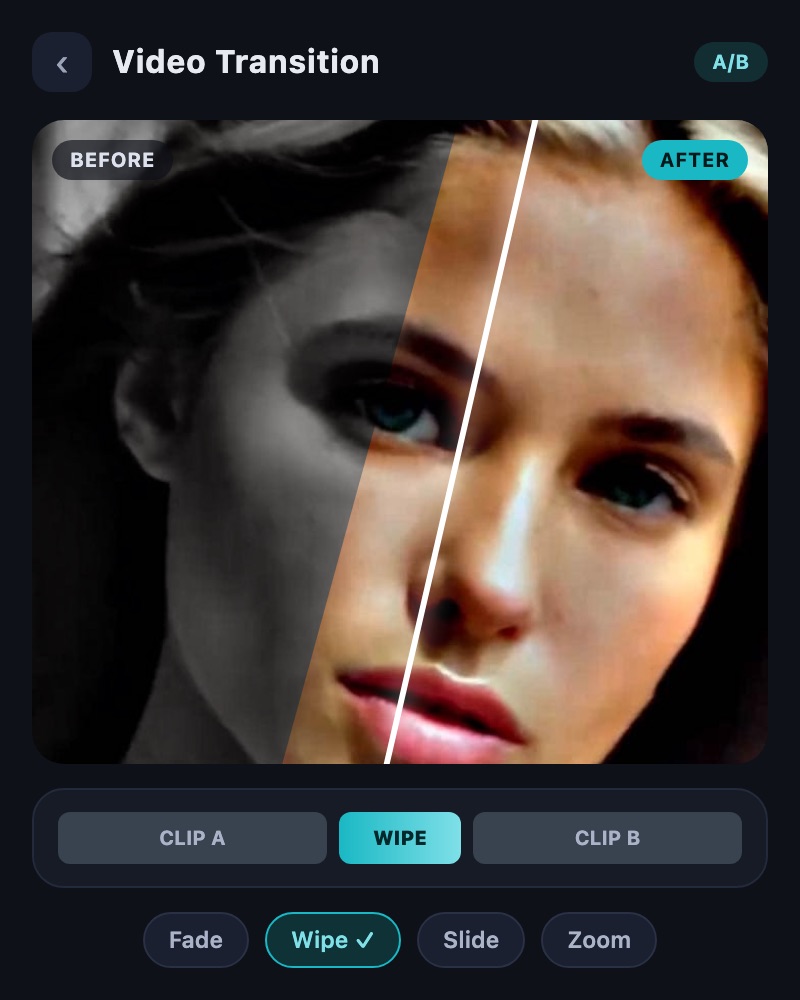
Compare sky, faces and shadows at the same scale before and after processing.
Check consistency between scenes and color on the intended playback device before saving.
03 / Try this sequence
Try this sequence
For a person filmed near a window, check both the face and the bright view outside. Compare settings again if skin tones shift or highlight detail becomes less visible.
Before you export
- Is detail retained in highlights and shadows?
- Do skin tones and whites look natural?
- Have you checked output format and playback support?
Frequently asked questions
Will colors look identical on every device?
Displays, players and output formats can affect the result. Review the main viewing device and prepare a separate sharing version if needed.
Available tools and export settings vary by app version and device. Check the app for the terms of AI generation and cloud processing.