Create a highlight and share it
34-second walkthrough in Korean: choose a video, review candidates, join clips, save and open the sharing menu. Recorded in the Android app.
Watch on YouTube ↗TOKTI / BADMINTON HIGHLIGHTS
Turn a long match recording into the rallies you want to show.
Start with a video on your phone. Review the suggested moments, choose the plays that matter to you, and join them into one highlight. This guide follows the process through editing, export and sharing with friends, a coach or a team.
34-second walkthrough in Korean: choose a video, review candidates, join clips, save and open the sharing menu. Recorded in the Android app.
Watch on YouTube ↗30-second example in Korean: select plays, add a title and prepare a file to send. Match footage is illustrative demonstration material.
Watch on YouTube ↗Choose a badminton video stored on your phone. Singles and doubles footage can be used; a fixed camera, a clear view of the players and court, and audible racket contacts make the candidates easier to review. Keep the preparation and end of each rally in the recording.
Versions showing a Create Highlights home card can start directly from that card. The videos and screenshots above demonstrate Android version 1.4.5(51); labels and layout may differ in your installed version.
Keep the full original separately. If a long video prompts you to choose an analysis range, select the match or set you want to work on. Download cloud-only footage to your phone and check that it plays before editing.
After analysis, review candidate cards with a thumbnail, start time and duration. Play each candidate and use its check mark to keep or exclude it. Remove waiting time, repeated scenes and plays you do not want to include.
When racket sounds are too weak, the app may suggest candidates from movement. Review their beginnings and endings yourself. Suggestions do not establish who scored or judge the best athletic performance.
If an important scene is missing or cut short, refine it in the advanced editor. Read the confirmation before changing sensitivity or running analysis again, as this can change your selection.
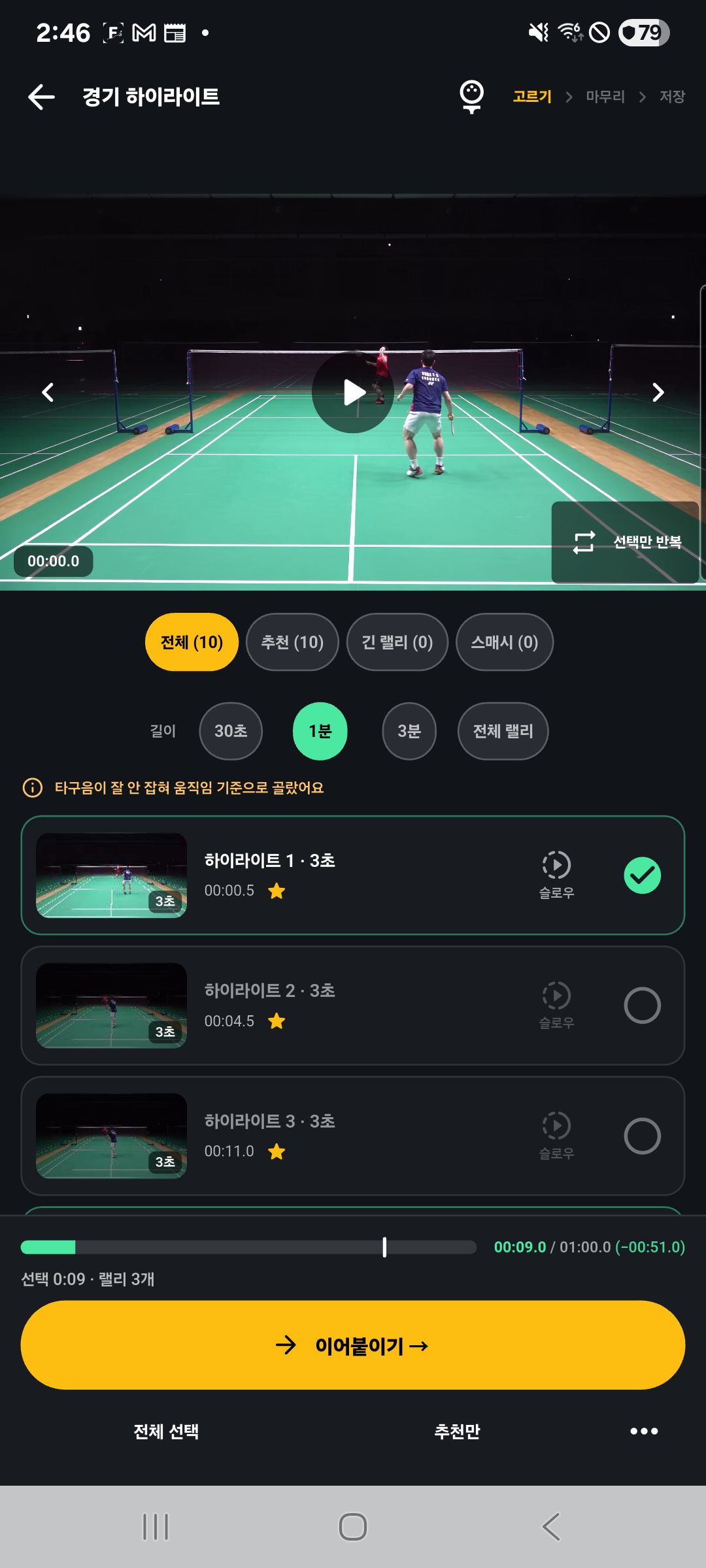
Select Join clips to move to the finishing screen. Your selected rallies become one sequence, and you can choose how to present them.
Add a title such as “November doubles highlights” or “My match highlights.” A title appears at the beginning; optional rally numbers identify individual scenes. Numbering makes it easier to ask a coach about a specific play.
Choose None, Smooth, White or Dissolve. Start with no transition for a direct review, or a smooth transition for a softer change between scenes. Check that effects do not obscure a short rally.
Keep match sound alone, or choose music from your device. For coaching footage, preserve audible racket contacts. When adding music, check that it does not overwhelm the action, and use a track you can publish.
Compare the original look with automatic brightening or a more vivid look. Choose from the quality options shown, such as 720p, 1080p or 1440p. Start with 1080p for general sharing, or consider 720p when transfer size matters. Higher resolution increases file size and processing time; it does not recover detail missing from the original.
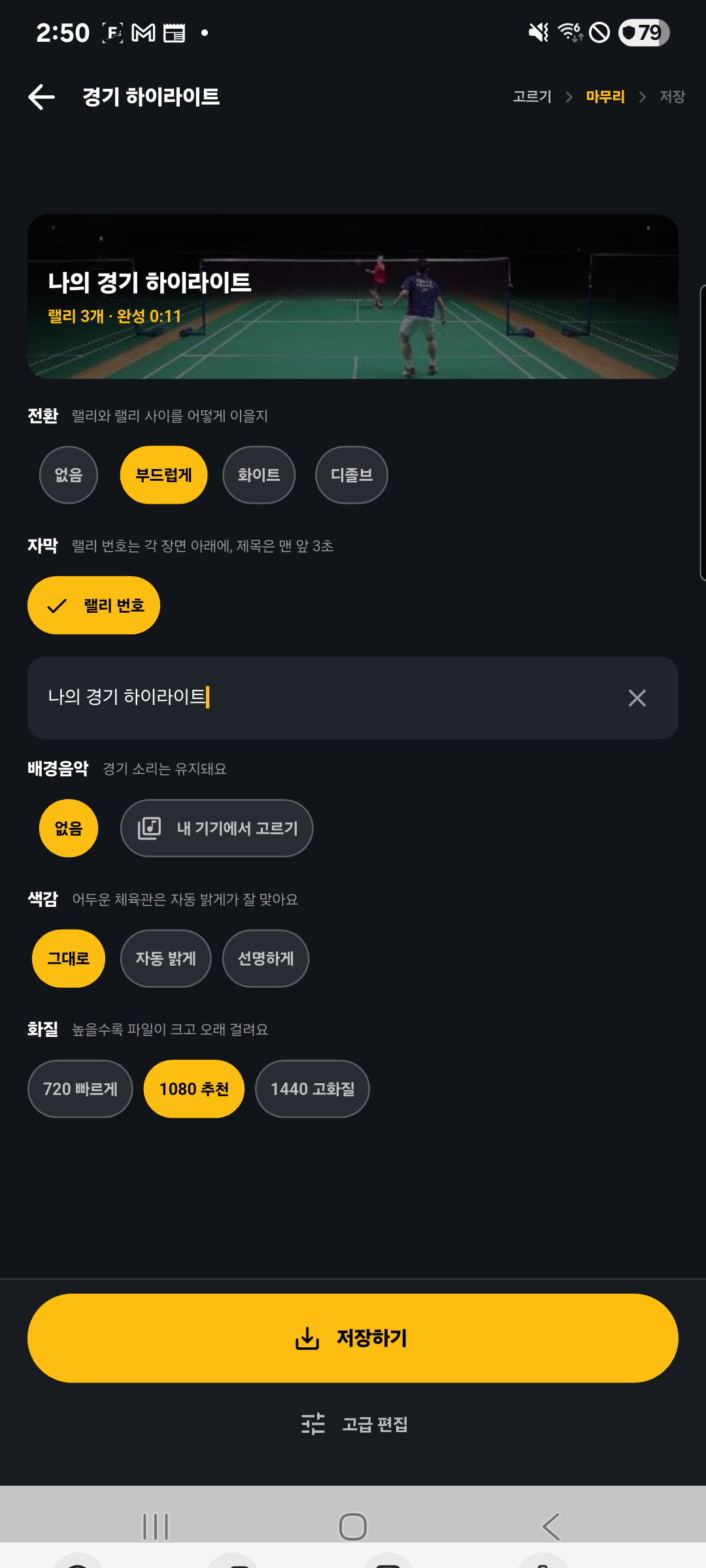
Quick Highlight helps you select candidates and finish a sequence. Use Advanced Editing to continue with the same project when you need more control.
If your version offers Final preview, review the sequence with its title, transitions, captions and music before saving. Otherwise, open the exported video in the player to review it. After changing settings, save a new version and share that new file.
See the sports video editing guide for more editing workflows.
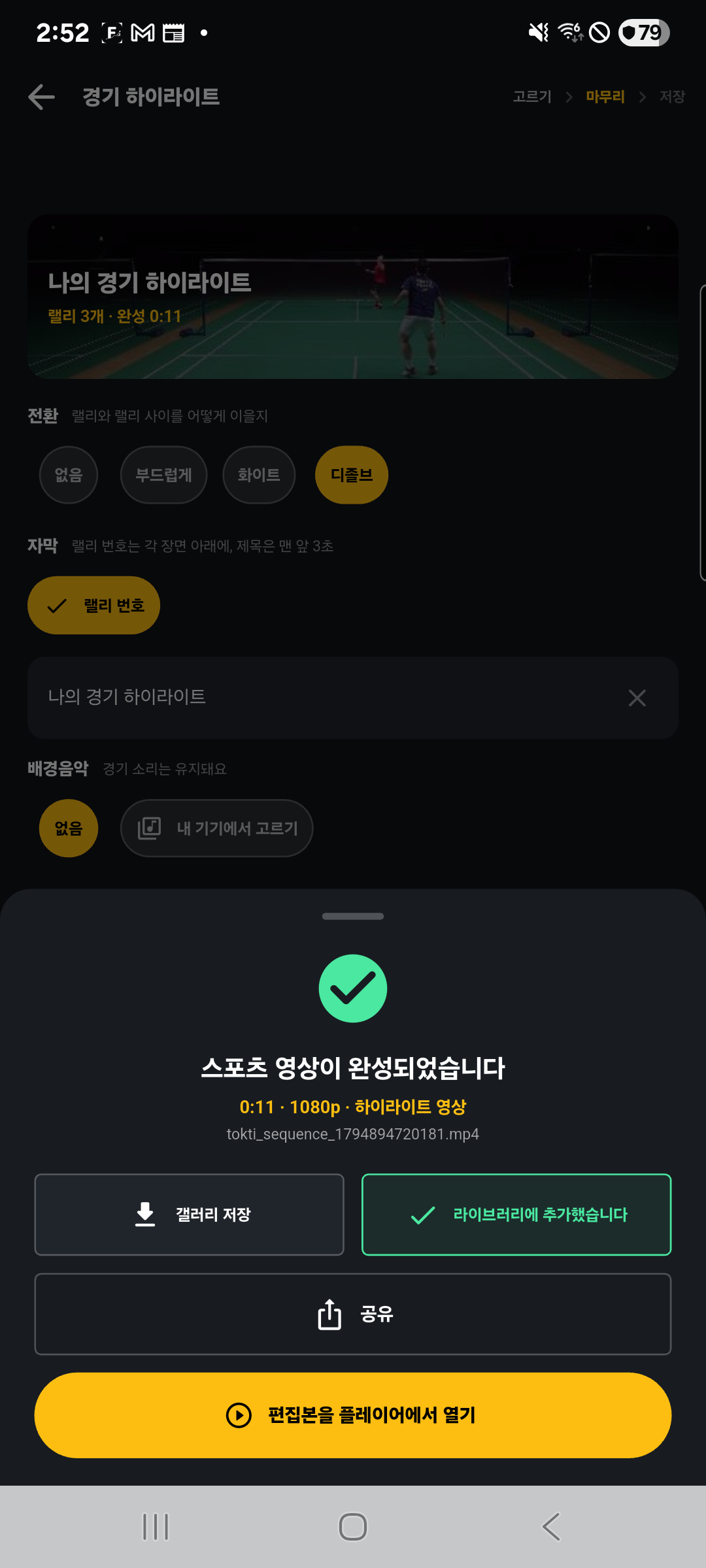
Check your settings and tap Save. Wait for the completion message. Processing time depends on the footage, selected clips, effects, output quality and your device.
The completion screen shows the result duration and quality, with actions such as Save to Gallery, Share and Open edited video in player. Confirm gallery saving and grant the required photo/video access. A library confirmation and a copy in the phone gallery are worth checking separately.
Play the result from beginning to end before sending it:
The finished result is an MP4 video. Keep the original match as well so you can build another highlight or return to the full context later.
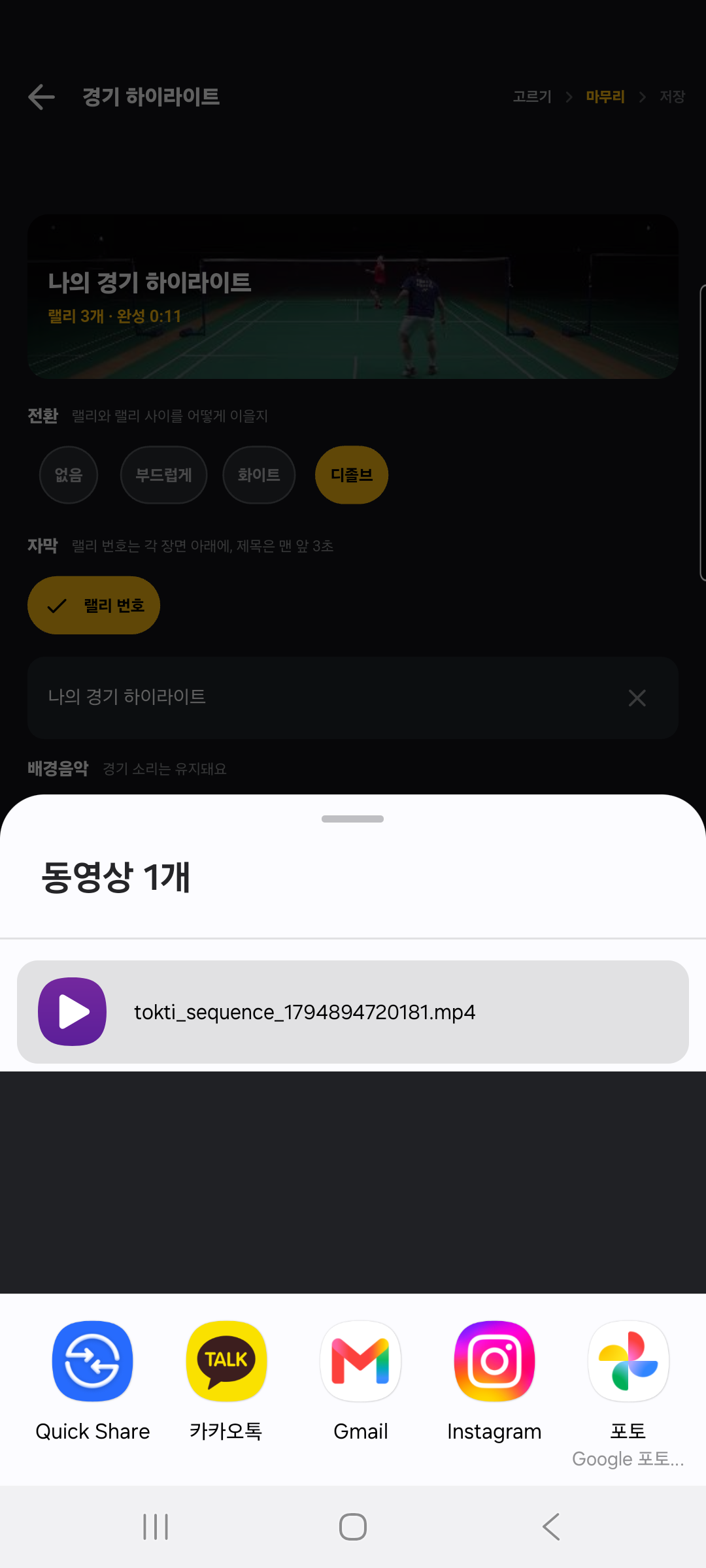
Tap Share on the completion screen to open your phone’s sharing menu. Choose an installed messaging or email app, select the recipient, and finish sending there. Available apps and transfer limits depend on your phone and the destination service.
Add a short explanation such as “My favorite rallies from today’s doubles match.” Keep group-chat clips concise. If the messaging app reduces quality, check its original-file or document sending options.
Pair a rally number with one question: “Could you check my recovery position after the defensive shot in rally two?” Include enough footage before and after the movement. Send the full match separately when more context is needed.
Select the saved video in the destination app’s upload screen. Check framing, title and visibility, then complete publication there. Saving or opening TOKTI’s share menu does not by itself publish a video to YouTube or another social service.
Sending an exported file is also different from TOKTI cloud-link sharing. Cloud links have their own sign-in, usage and validity conditions. This guide focuses on saving and sending the finished file.
The video coaching and sharing guide explains scene sharing and shared viewing in more detail.
Try the 30-second target and select a few memorable plays. Add a short title and one transition style. This is a starting recipe, not a promise of an exact 30-second result.
Keep one successful attempt and one you want to improve. Preserve match audio and enable rally numbers to make comparisons and questions easier. Write down one thing to practice next.
Decide who will watch and choose the attacking, defensive or movement sequences you want them to see. Include your name, match date and position in the title or accompanying message. Follow any requested length and format, and keep the complete match available.
This workflow helps prepare and deliver footage. Automatic candidates do not assess your attacking or defensive ability or guarantee admission, selection or scouting outcomes.
Gym noise, nearby courts, quiet contacts and camera movement affect candidates. Review the original, select or exclude candidates, and use advanced editing to correct intervals.
Check that the original is fully downloaded and plays on the phone, and that you have enough storage and photo/video permissions. Some source formats may not be supported on your device. Try a supported MP4 source, a shorter selection or a lower output quality.
Editing, automatic rally splitting and cloud sharing can have different conditions. Check the current free allowance and subscription screen in the app. This guide does not imply unlimited free automatic selection.
An existing export contains its previous settings. Save again, open the new result to confirm the change, and share that file.
A normal MP4 file can be viewed in a supported messaging app or video player. TOKTI links and online shared viewing have their own access conditions.
TOKTI / iOS + ANDROID
Start with a match recording on your phone.
Check the app for feature availability and usage limits.