01 / Before you begin
Before you begin
Trim the material you do not need
At the same average bitrate, a shorter duration requires less data. Remove waiting time or repeated explanations in the TOVA editor before compression. Exporting an edit can re-encode the video, so do not assume trimming is lossless. Keep the source and project.
Resolution: choose useful dimensions
Choose an available 360p, SD, HD, FHD, 4K or % option for your source. The % option scales width and height; it is not a percentage reduction in file size. For screen recordings with small text, first retain a readable size such as FHD. For a short scenic clip, compare an HD result too.
Bitrate: allocate detail carefully
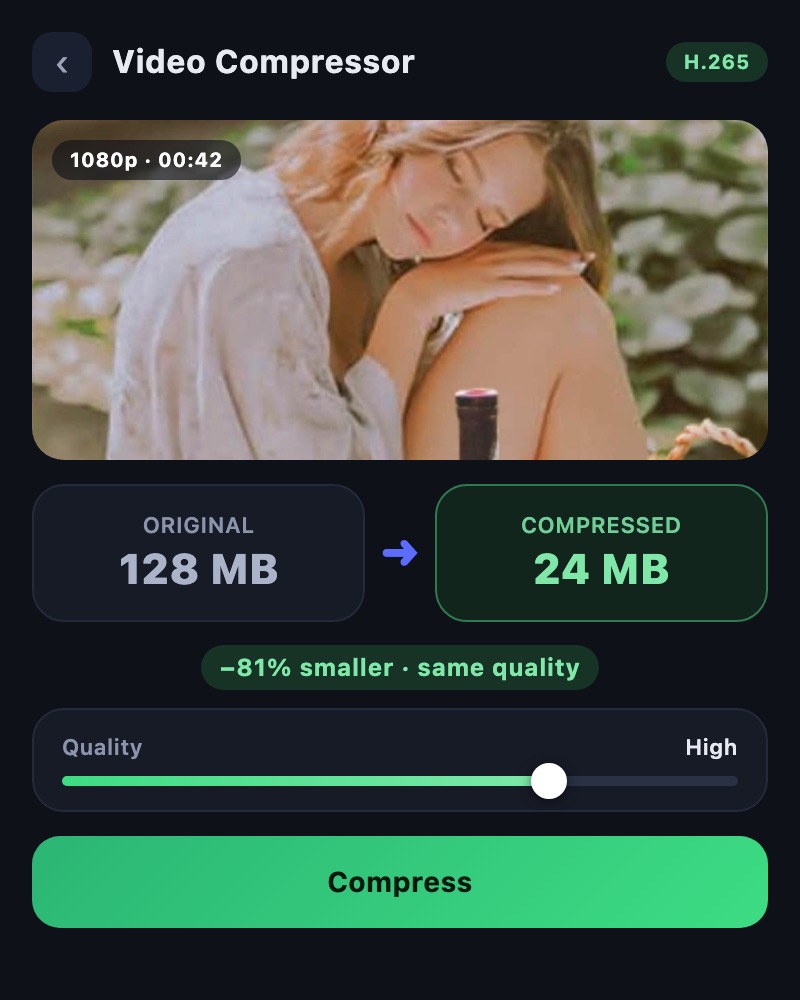
Bitrate is the amount of data assigned to each second of video. TOVA’s percentage slider adjusts output bitrate relative to the source and selected resolution. A 60% setting does not promise a file that is exactly 40% smaller. Change it gradually and check hair, small lettering and fast movement for smearing or blockiness.
Codec: consider the receiving device
Choose H.264 or H.265 (HEVC). Start by testing H.264 when compatibility is the priority. Before choosing HEVC, check support in the receiving app or device and compare the resulting size and quality. A codec change alone does not guarantee a particular reduction or better detail.
Keep the audio you need
Leave Include audio track enabled for speech or music. Disable it only when the delivery should be silent. Estimated Size is a prediction, so leave room below the destination limit and check the actual completed size. For multiple selected videos, distinguish the total from each individual file.
Use the right tool for frame rate
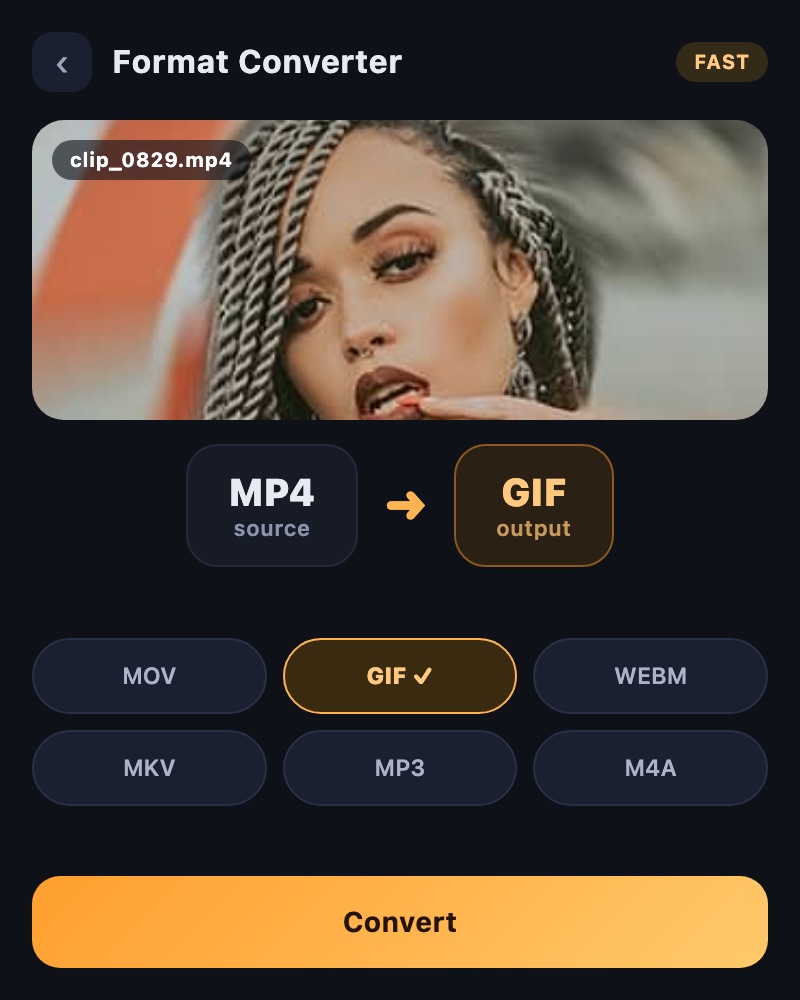
Video Compressor offers resolution, bitrate, codec and audio controls; it does not expose a separate FPS selector. Use the editor’s export settings or the supported options in Format Converter when you need to choose frame rate. Compression and AI enhancement also serve different purposes.
02 / Follow these steps
Follow these steps
Keep the source and check the destination’s current file-size limit.
Trim unnecessary sections in the editor if the story allows it.
Open Video Compressor from the tools screen and select the video.
Choose Resolution, adjust Bitrate and review the estimated size.
Check Codec and Include audio track, then start compression.
Compare the finished size, text, motion and audio with the source.
Test the file in the receiving app; revise from the source if needed.
03 / Try this sequence
Try this sequence
For a 30-second product demonstration, judge readability of the product name and clarity of the action. Start by checking FHD and adjusting bitrate if the file is too large. Then compare HD if necessary, without making essential text unreadable. This is a comparison workflow, not a promised file size or compression ratio.
Before you export
- Have you kept a separate source and delivery copy?
- Are you treating percentages as settings rather than guaranteed savings?
- Are text, faces and fast motion readable?
- Is required audio present?
- Have you checked actual size and playback on the receiving device?
Frequently asked questions
Does 50% bitrate mean half the file size?
No. Resolution, audio, the source and encoding results also matter. Check both the estimate and the actual completed size.
Why is 4K unavailable?
The compressor limits dimensions above the source. It is not an upscaling tool for increasing a small video’s resolution.
What if the smaller file still cannot be sent?
Check the actual size against the destination limit. If size is acceptable, investigate format and codec compatibility using the Format Converter guide.
Should I compress the result again?
Repeated lossy compression can accumulate damage. Make revised versions from the source or editable project instead.
Available tools and export settings vary by app version and device. Check the app for the terms of AI generation and cloud processing.