TOVA / YOUTUBE SHORTS
Watch it in action
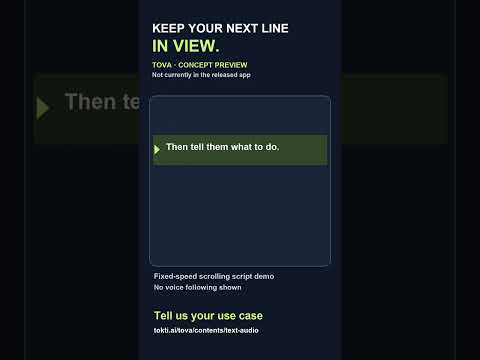
Keep your next line in view: a filming aid concept
For a short tutorial or product intro, try writing one thought per line before recording. Our TOVA teleprompter concept preview shows an original script scrolling at a fixed speed through a reading guide. This is a proposed filming aid made outside the released TOVA app, not a currently available app feature. The preview does not demonstrate voice following, camera recording, or automatic eye-contact correction. Its purpose is to ask whether a simple reader would help you rehearse and which use case matters. Would you use it for tutorials or product intros? Tell us below the video. Current text, music and voiceover editing options are described elsewhere on this page; their availability depends on your app version.
Watch on YouTube ↗If the player is unavailable, watch on YouTube.

Two lines, a voice for your how-to: concept preview
Would you rather record a voice yourself or turn two short instructions into narration? This concept preview uses the same original iced-coffee graphic and the same text, first silent and then narrated. Text-to-speech is a proposed addition, not a currently available TOVA feature. This demonstration is not an app screen or app output. For tutorials or product explainers, tell us which use case you would try in the video comments. Text and audio tools already described elsewhere on this page are separate; check your app version for current availability.
Watch on YouTube ↗If the player is unavailable, watch on YouTube.
01 / Before you begin
Before you begin
Style words for the screen
Use a title to introduce a scene and short captions to explain the essential point. Adjust styling, position and display duration, leaving enough size and space for the words to remain readable on a phone.
Give each sound a role
Music can sustain the mood while a sound effect marks one moment. Avoid filling every pause. Adjust volume and fades so audio starts and ends deliberately instead of competing with the visual story.
Work with narration and source audio
Record a voiceover or separate audio from a clip for further editing. Keep music lower during spoken explanation and review the balance on a small speaker as well as headphones.
Keep your next line in view: a filming aid concept
For a short tutorial or product intro, try writing one thought per line before recording. Our TOVA teleprompter concept preview shows an original script scrolling at a fixed speed through a reading guide. This is a proposed filming aid made outside the released TOVA app, not a currently available app feature. The preview does not demonstrate voice following, camera recording, or automatic eye-contact correction. Its purpose is to ask whether a simple reader would help you rehearse and which use case matters. Would you use it for tutorials or product intros? Tell us below the video. Current text, music and voiceover editing options are described elsewhere on this page; their availability depends on your app version.
Two lines, a voice for your how-to: concept preview
Would you rather record a voice yourself or turn two short instructions into narration? This concept preview uses the same original iced-coffee graphic and the same text, first silent and then narrated. Text-to-speech is a proposed addition, not a currently available TOVA feature. This demonstration is not an app screen or app output. For tutorials or product explainers, tell us which use case you would try in the video comments. Text and audio tools already described elsewhere on this page are separate; check your app version for current availability.
02 / Follow these steps
Follow these steps
Write a short message for each scene and add it as text.
Add music and sound effects, then record narration where an explanation helps.
Play the sequence and review reading time, voice clarity and audio balance.
03 / Try this sequence
Try this sequence
For a product tutorial, pair each action with one short sentence. Use narration for detail that would make the screen too crowded and reserve sound effects for changes between steps. The result can carry more information without feeling cluttered.
Before you export
- Can viewers finish reading each caption?
- Is speech audible over the music?
- Do you have permission to share the music and voice recordings?
Frequently asked questions
Are these automatically generated captions?
This page describes editing manually entered text and captions. It does not assume an automatic speech-transcription feature.
Can I use any music in a shared video?
Choose music you have permission to use in the intended video. Review the available app library and any files you import yourself.
Available tools and export settings vary by app version and device. Check the app for the terms of AI generation and cloud processing.