TOVA / YOUTUBE SHORTS
Watch it in action

Keep the flame, lose the black box: a title intro preview
A light or flame clip on a black background can leave a rectangle over the scene you want to show. This TOVA concept preview compares the same four-second source clip with a proposed title-intro composition on a purple background. It is an externally rendered concept, not a recording from the released TOVA app, and it does not demonstrate automatic person cutout or removal of arbitrary backgrounds. Notice the faint edges as well as the bright center; a result that looks fine on black may read differently on another color. Would this be useful for a title intro or a story effect? Leave your use case below the video. For current editing options, check the layers, masks and blend controls available in your app version.
Watch on YouTube ↗If the player is unavailable, watch on YouTube.
01 / Before you begin
Before you begin
Show context with picture-in-picture
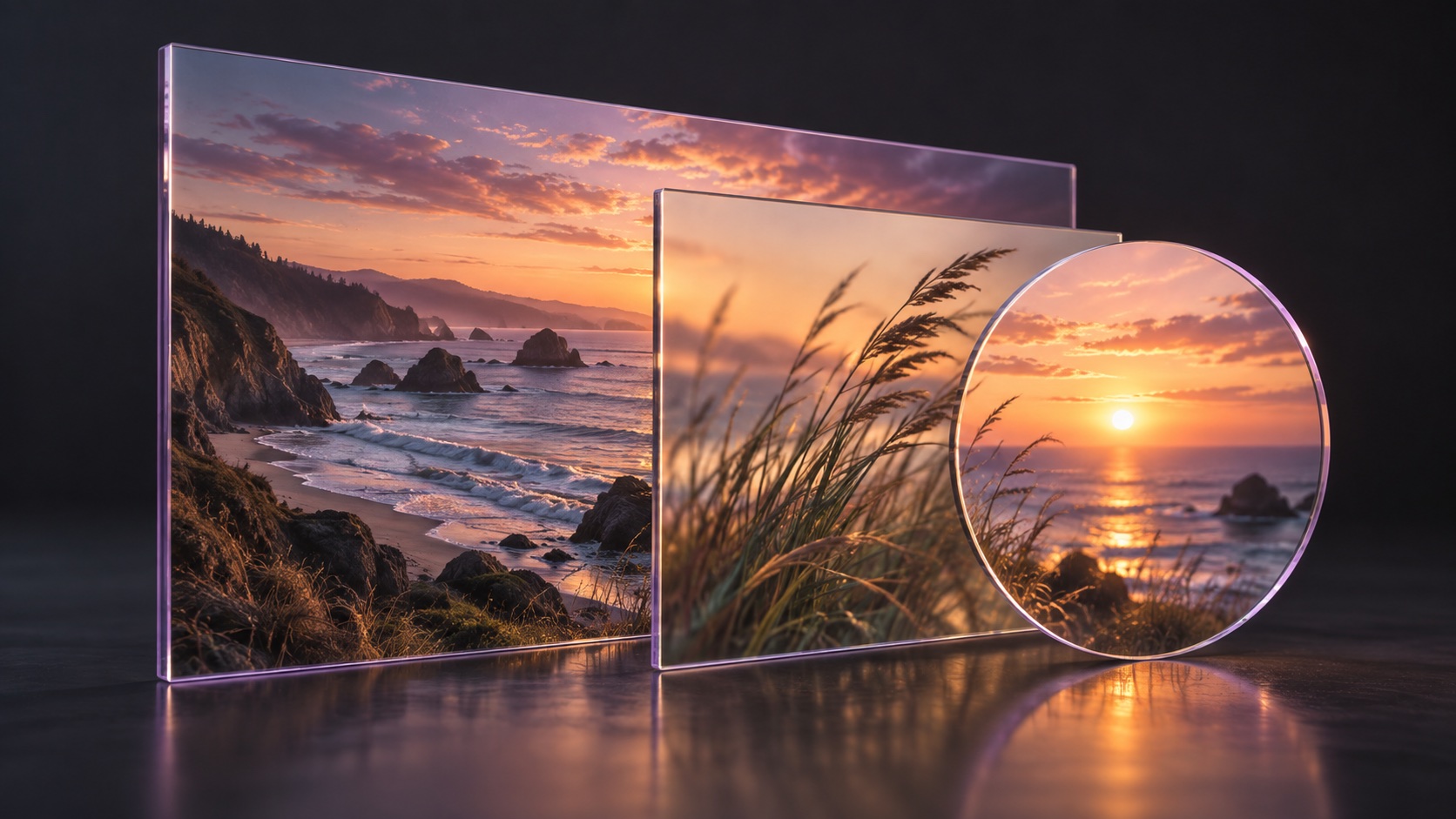
Add a secondary video or image above the main footage. Pair a product demonstration with a detail image, or a landscape clip with a map image, so the viewer can understand both at once.
Guide attention with masks
Use a shape mask to define which part of the image remains visible. Refine the composition and layer placement so supporting visuals do not cover the main subject or compete for attention.
Build atmosphere with blends
Overlays and blend modes change how visual layers combine. Review how bright and dark areas interact and keep the treatment subtle enough that the subject remains readable throughout the shot.
Keep the flame, lose the black box: a title intro preview
A light or flame clip on a black background can leave a rectangle over the scene you want to show. This TOVA concept preview compares the same four-second source clip with a proposed title-intro composition on a purple background. It is an externally rendered concept, not a recording from the released TOVA app, and it does not demonstrate automatic person cutout or removal of arbitrary backgrounds. Notice the faint edges as well as the bright center; a result that looks fine on black may read differently on another color. Would this be useful for a title intro or a story effect? Leave your use case below the video. For current editing options, check the layers, masks and blend controls available in your app version.
02 / Follow these steps
Follow these steps
Prepare the main footage and add a supporting video or image with PIP.
Adjust placement and size, then apply a mask, blend or overlay where useful.
Play the entire layered section and check for obscured subjects or unreadable text.
03 / Try this sequence
Try this sequence
For a product introduction, keep the demonstration large and place a detail photo in a smaller PIP region. Put explanatory text in the opposite open space. This gives the moving image, still image and words distinct jobs instead of making them compete.
Before you export
- Does the inset leave the subject and text visible?
- Have you checked mask edges and layer timing?
- Is the inset readable on a phone screen?
Frequently asked questions
Does PIP work only with photos?
Both video and images can be used as PIP media. Available options depend on the selected media and device.
Does a mask automatically track a person?
This guide describes shape masks and composition. It does not promise automatic subject tracking or background removal.
Available tools and export settings vary by app version and device. Check the app for the terms of AI generation and cloud processing.