01 / Before you begin
Before you begin
Choose an overall direction
Decide whether the sequence should feel warm, calm or more dramatic before comparing filters. Look at skin tones, bright skies and dark areas rather than judging a treatment from one small part of the image.
Balance neighbouring scenes
Clips recorded in different locations may have different brightness and color. Review them next to each other and adjust their appearance so a cut does not feel like an unintended visual jump.
Use effects with intention
Effects and motion blur can emphasize movement or atmosphere. Keep treatments restrained in scenes that contain important text or small product details, where readability matters more than visual intensity.
02 / Follow these steps
Follow these steps
Review the source clip and decide what needs to change.
Choose a filter, refine its appearance with adjustments and add useful effects.
Play neighbouring scenes together and reduce treatments that distract.
03 / Try this sequence
Try this sequence
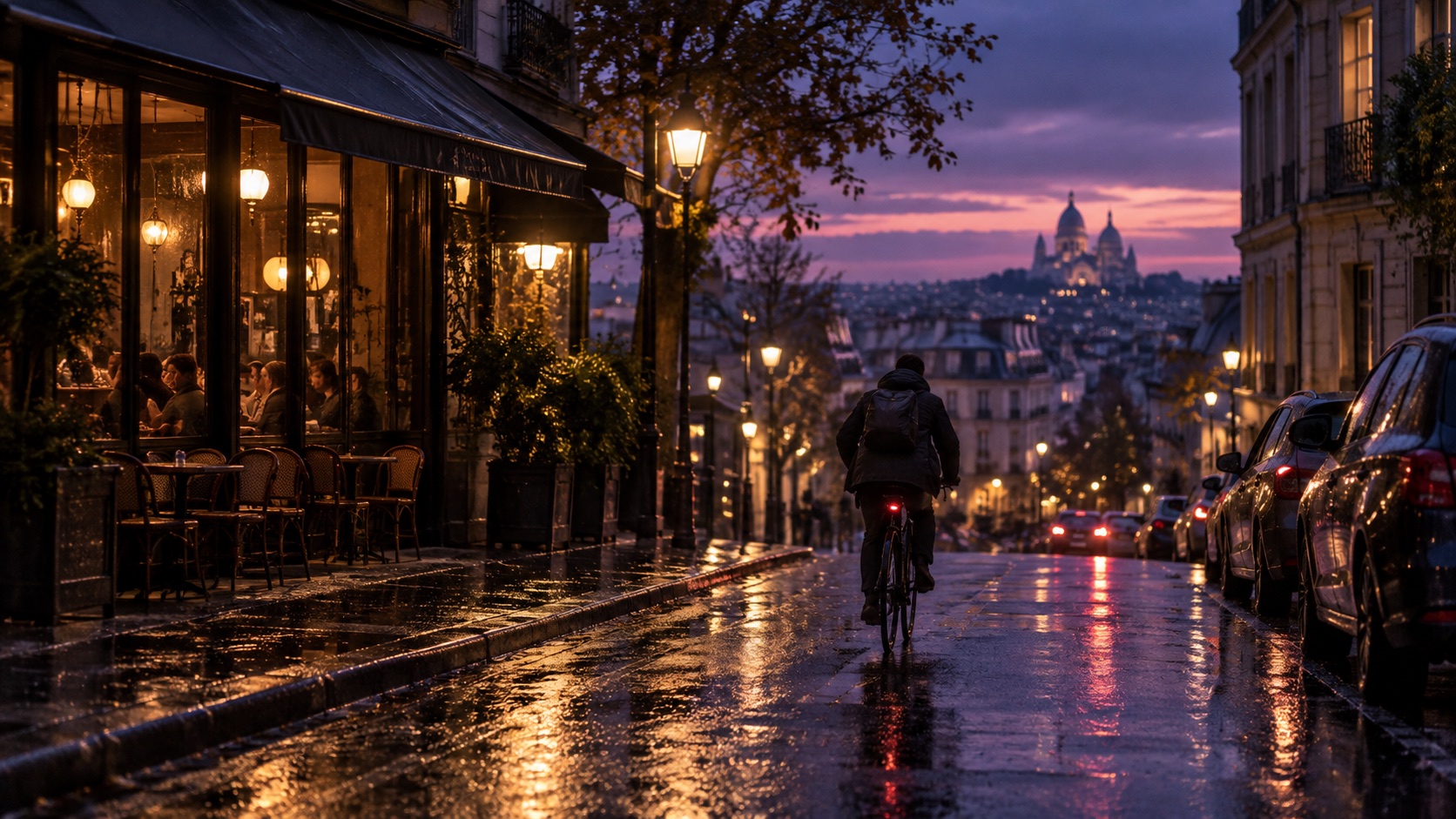
If indoor restaurant footage and an outdoor landscape look very different, balance the scenes before applying a common mood. The aim is not to erase the character of each location, but to make the transition feel intentional.
Before you export
- Do skin tones and whites still look natural?
- Is brightness consistent between neighboring shots?
- Does the grade preserve the real color of the product?
Frequently asked questions
Does a filter increase video quality?
Filters and color adjustments change the appearance. For detail enhancement or resolution enlargement, explore the dedicated quality and upscaling tools.
Is motion blur a stabilization tool?
Motion blur is a visual effect for the impression of movement. It is different from stabilizing camera shake or restoring a blurred source.
Available tools and export settings vary by app version and device. Check the app for the terms of AI generation and cloud processing.